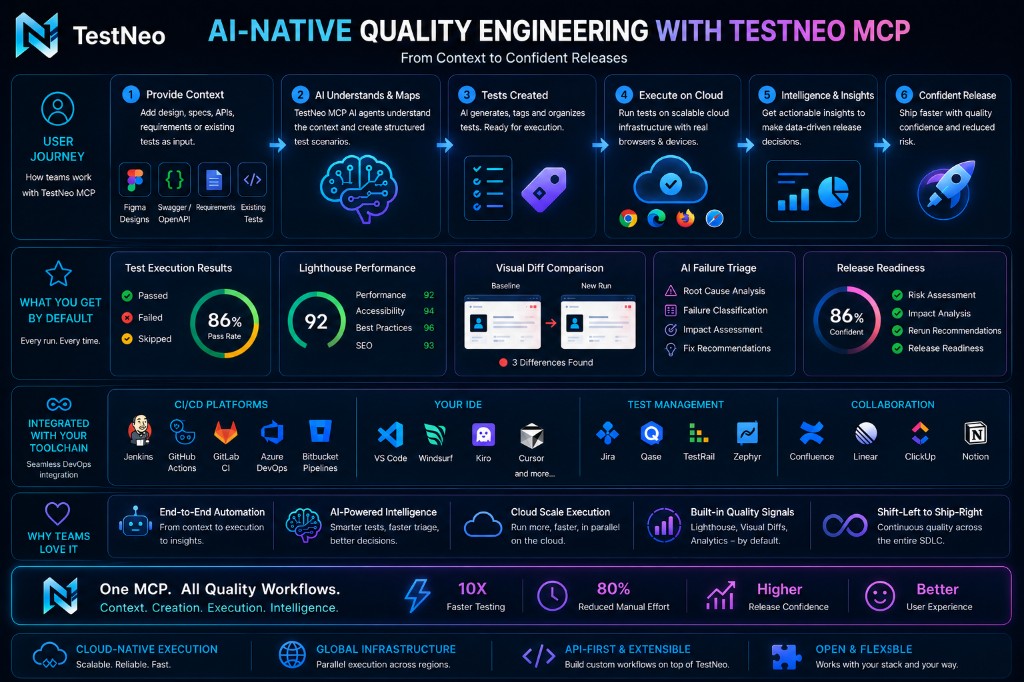
Turn the AI chat you already use — Cursor, VS Code, Claude Desktop, or any MCP-compatible client — into a full QA agent that generates, executes, watches, and triages tests.
What it is
TestNeo MCP exposes TestNeo capabilities as tools that AI assistants (Cursor, Claude Desktop, other MCP clients) can call directly.
This enables an IDE-native QA workflow:
Query quality data
Generate tests from context
Execute with safeguards
Watch runs
Triage failures
Why it matters
Reduces manual QA operations and context switching.
Turns chat prompts into real test actions.
Supports both fast NLP workflows and engineer-friendly Playwright SDK script workflows.
Core capabilities
Project and execution discovery
Tag-based test discovery and multi-test batch runs — testneo_list_tests_by_tags (union or intersection of tags, @tag normalised) and testneo_run_batch_by_tags (guarded write; same backend as the product batch runner); optional testneo_get_local_agent_status when routing through the self-hosted agent — see Tool Reference and Prompt packs (tag-based batch)
Failure bundles with likely root cause, next actions, and an optional suggested_nlp_patch (diff-style NLP + testneo_update_test_case_nlp template when a test case id is known)
Rerun planning and guarded execution
Context-based test generation (including Figma-ingested unified contexts), with list + resolve-by-name so you rarely need raw context_id values
Playwright SDK spec export and preview execution
PR Validation & Release Confidence — testneo_pr_validation_workflow (one-shot Release Brief: impact analysis → risk scoring → AI root causes → fix plan), plus companion tools testneo_explain_failure, testneo_suggest_fix, testneo_get_pr_validation_history, testneo_get_pr_validation_detail, testneo_get_risk_signals. Works in Cursor, VS Code + Copilot, Windsurf, Claude Code, and any MCP client. Before first use:GitHub PAT & permissions · UI walkthrough · auto-validation · code index.
Engineering Memory — Jira/CSV/postmortem → unified patterns with 30-day trend → live PR matches by changed files (not PR numbers). Tools: testneo_sync_engineering_memory, testneo_list_engineering_memory_patterns, testneo_refresh_engineering_memory_patterns, testneo_get_incident_matches. Engineering Memory tools → · prompts EM1–EM9 · full guide.
API Risk Discovery — paste a cURL → deterministic risk variants (no LLM) → run cloud/local agent → Confidence Brief → promote to curl_risk NLP + Engineering Memory. Tools: testneo_api_risk_discover, testneo_api_risk_run, testneo_api_risk_brief, testneo_api_risk_promote. Workflow 13 · Tool reference · Product page.
AI Agent Verification — Claimed → Observed → Verified; PASS/WARN/BLOCK. Prefer testneo-agent-sdk or testneo_ingest_agent_run_summary (+ optional golden / API NLP for product agents). Prompts AV1–AV5 · quickstart · ingest · Prompt packs.
Observability
JSON tool outputs include _telemetry: stable request_id, duration_ms, and backend_paths (each entry is METHOD path) for support and debugging.
For centralised monitoring, set TESTNEO_MCP_TELEMETRY_JSONL=true — the server emits one JSON line per tool invocation to stderr, ready for Vector / Fluent Bit / Loki pipelines.
Roadmap themes (Section 2 vs Section 3) and what’s shipped
Planning docs use Section 2 Hardening and Section 3 Route / env as adjacent themes — they are not duplicates:
URL truth:{{base_url}}, TESTNEO_ROUTE_PROFILE, TESTNEO_ROUTE_MAP_JSON, SauceDemo-aligned defaults for demos; future durable route maps per project on the server.
Shipped today (v1 posture): route hardening across generate/preview/update, env-driven maps, governed writes, _telemetry, failure-bundle suggested_nlp_patch. Real customer apps still need correct project env and route configuration — MCP does not silently invent production URLs.
Next for production readiness: broader precondition policies (auth / data / cart), project-scoped route config (reduce reliance on workstation env), and persisted MCP/API telemetry for per-tenant dashboards (optional OTel/log pipeline). Executable base URL fail-fast for generate/execute is already shipped in MCP (projectPreconditions).
Roadmap and implementation status evolve with each MCP release — see release notes on @testneo/mcp-server.
How it fits together
MCP tools are the action layer.
TestNeo backend is the source of truth.
Agent workflows orchestrate multi-step operations on top of tools.
Configuration: MCP reads TESTNEO_* env on the machine (or IDE) that runs the MCP server, not from the API server’s deployment env. Where that lives vs the API, required vs optional variables, defaults, and overrides: MCP quickstart (environment variables).
Key workflows
testneo_list_tests_by_tags / testneo_run_batch_by_tags / testneo_get_local_agent_status — tag discovery, optional local agent check, and multi-test batch execution (Workflow 6, Prompt packs).
testneo_run_agent_workflow with workflow_type: qa_intelligence_workflow (trend + failed runs + triage + rerun preview), triage_failure_workflow (triage bundles), or rerun_decision_workflow (pass rate + rerun plan preview only) — these strings are not standalone tool names.
testneo_figma_to_tests_workflow: unified context → test generation → preview (or use testneo_ingest_figma_context when starting from Figma ETL).
Human-in-loop review before write actions (confirm=true) where the tool supports it.
testneo_pr_validation_workflow — one-shot Release Brief from your IDE: say "validate my PR" and get a risk score (🔴 BLOCK / 🟡 WARN / 🟢 PASS), per-finding root cause, prioritised NOW/NEXT fix plan, and a ready-to-paste PR comment draft. Workflow 7 · PR Validation guide →
Contexts you create from Figma carry the display name you set at ingest. Use testneo_list_unified_contexts / testneo_get_unified_context_by_name (e.g. name_query: "figma checkout") instead of guessing ids. Unified context discovery — worked example.
Safety model
!
Write actions are disabled by default.
To enable tools that mutate data (execute tests, rerun, trigger Playwright), you must:
Set TESTNEO_MCP_ALLOW_WRITE=true in the MCP server environment.
Pass confirm=true on the specific tool input.
This prevents accidental execution from casual prompts. Read & analysis tools work without these flags.
Tool Reference — every tool, telemetry shape, contract, and example inputs.
TestNeo Studio — testneo_ai_assistant_query (same backend as /web/ai-assistant), prompt library, and data-backed release patterns.
Quickstart
Connect the TestNeo MCP server to your IDE and run your first workflow in under five minutes. Flow diagram (Mermaid): the next section, How this quickstart fits together.
How this quickstart fits together
Follow the numbered sections below in order. The diagram is the same style as Golden prompt packs — At a glance (product journey: context → tests → run → insights). For a stakeholder-ready picture of default signals and toolchain, see Prompt Packs — visual journey. You can still copy the source into mermaid.live to edit.
flowchart TD
A["1 Install MCP server config"] --> B["2 Restart MCP in the IDE"]
B --> C["3 Validate + list projects"]
C --> D{Writes enabled?}
D -->|No default| E["Explore: workflows, contexts, Web AI query"]
D -->|Yes when ready| F["Guardrails: ALLOW_WRITE, confirm, idempotency"]
F --> G["4 Web project + environment"]
G --> H["5 Figma / Swagger or pipeline run"]
E --> I["Customer E2E + Prompt packs for copy-paste"]
H --> I
Prerequisites
Node.js 20+
A TestNeo backend you can reach:
TestNeo Cloud — set TESTNEO_BASE_URL to https://app.testneo.ai. Sign up if you need an account, then create an API key as in Get your TestNeo API key below.
Self-hosted — set TESTNEO_BASE_URL to your API origin (the URL the API is actually served at).
Local dev — set TESTNEO_BASE_URL to the origin that actually serves /api/web/v1/… (often http://127.0.0.1:8000 or :8001, depending on how you run the API). If localhost misbehaves in the IDE, prefer 127.0.0.1 and see MCP troubleshooting (NO_PROXY, proxy quirks).
TestNeo API key (tn_…) — required for MCP; treat like a password. For Cloud, follow Get your TestNeo API key below.
An MCP-compatible client — Cursor recommended; VS Code, Claude Desktop, Windsurf, Zed all supported.
Published package & source: the MCP server is published as @testneo/mcp-server on npm and mirrored at github.com/gururajhm-neo/testneo-mcp (clone for local builds, issues, and README).
Get your TestNeo API key (Cloud)
For TestNeo Cloud, you need a key in MCP config as TESTNEO_API_KEY (see Section 1 — Install). Typical flow:
Open profile — in the TestNeo web app, go to your profile / account area (often from your avatar or user menu in the top bar).
Generate a new key — find API keys (or Developer / API access) and use Generate new key / Create API key. Copy the key when it is shown; you may not be able to read the full secret again later.
Paste into MCP — set "TESTNEO_API_KEY": "tn_…your_key…" in your MCP server env block (replace YOUR_API_KEY in the examples in Section 1).
Restart MCP — reload or restart the MCP server in your IDE so the new environment variable is picked up.
Self-hosted / local API: use the key issued for that environment; the same TESTNEO_API_KEY name applies in MCP. Your admin may use different UI labels.
VS Code extension or TestNeo MCP?
Use both for different jobs. They talk to the same TestNeo product; they are not duplicates.
Dimension
TestNeo VS Code extension
TestNeo MCP
Where it runs
Inside Visual Studio Code (editor-native).
Inside any MCP client (Cursor, Claude Desktop, VS Code with MCP, etc.).
Best for
Day-to-day authoring from the repo: right-click → generate tests, inline edit, run, tight file ↔ test loop.
Chat- and agent-driven workflows: list projects, Swagger/Figma pipelines, execute + wait + triage, QA intelligence without switching to the TestNeo web UI for every step.
Code → tests
Primary path when developers already live in VS Code: fastest feedback, least context switching.
Optional: same APIs can be driven from chat (e.g. bulk or cross-repo narratives); not required if the extension already wins for your team.
Who it is for
Engineers on VS Code + TestNeo.
Teams on Cursor / AI IDEs, multiple editors, or non-IDE MCP hosts.
Guardrails
Extension and product UX (sign-in, permissions).
Explicit env: TESTNEO_MCP_ALLOW_WRITE, per-tool confirm, idempotency_key, environment_name on runs — see Security & Governance.
One-liner for customers: use the VS Code extension for in-editor generate–tweak–run; use MCP when you want TestNeo actions from AI chat alongside repo context, or when developers are not on VS Code.
VS Code + GitHub Copilot (MCP config)
Prerequisites: Node.js 20+, TestNeo API key from app.testneo.ai.
Reload VS Code: Command Palette → Developer: Reload Window (no npm install — npx downloads on first MCP start).
In Copilot Chat, try: List my TestNeo projects or Validate my PR before merge.
Security: do not commit real tn_… keys — use YOUR_API_KEY in git; each developer sets their key locally.
Upgrade MCP: change @0.2.1 to the new release in args, reload the window. If tools look stale: npx clear-npx-cache, then reload again.
Install the TestNeo VS Code extension (optional)
If you use Visual Studio Code, install the official extension from the Visual Studio Marketplace: TestNeo — AI Test Automation (testneo.testneo-vscode). It edits and runs .testneo files, talks to the same TestNeo cloud as MCP (app.testneo.ai), and uses the same kind of API key as MCP — create one via Get your TestNeo API key, then paste it into VS Code settings where the extension expects the token (see the Marketplace page for setting names such as API Token and API URL).
Quick install: in VS Code, open Quick Open (Ctrl+P / Cmd+P), run ext install testneo.testneo-vscode, or open Extensions and search for TestNeo. Then use the Command Palette → TestNeo: Select Project and set API URL to https://app.testneo.ai for cloud (unless your team uses a self-hosted API).
Default execution:cloud — TestNeo runs tests; no local agent required. For VPN/internal apps with a self-hosted agent, switch to local + TESTNEO_MCP_PREFER_LOCAL_AGENT=true (see optional block below).
For self-hosted API, change TESTNEO_BASE_URL (and TESTNEO_WEB_APP_URL if the SPA is on a different origin). Current stable pin: "-y", "@testneo/mcp-server@0.2.1" — see npm versions. No global install — npx fetches on MCP start.
Optional — self-hosted local agent (VPN / internal apps)
Replace the five TESTNEO_MCP_* execution lines with:
Option C — Private testneo-api monorepo (maintainers)
From the monorepo root (root package.json wires scripts; the package lives under packages/testneo-mcp-server):
npm run install:mcp
npm run build:mcp
Or from the package directory: cd packages/testneo-mcp-server, then npm install and npm run build.
Point MCP at node with args: absolute path to testneo-api/packages/testneo-mcp-server/dist/index.js (same env shape as Options A–B; TESTNEO_BASE_URL is often http://127.0.0.1:8001 for a local API).
If curl works with localhost but testneo_validate_connection fails in Cursor, set TESTNEO_BASE_URL to http://127.0.0.1:<PORT> and add NO_PROXY as in Troubleshooting.
Per-client paths
Cursor / Windsurf:Settings → MCP or edit ~/.cursor/mcp.json.
Claude Desktop: macOS ~/Library/Application Support/Claude/claude_desktop_config.json · Windows %APPDATA%\Claude\claude_desktop_config.json · Linux ~/.config/Claude/claude_desktop_config.json. Full walkthrough + prompts: Claude Desktop guide · standalone.
VS Code + Copilot:.vscode/mcp.json in the project → Command Palette → Developer: Reload Window.
i
Tip: Keep TESTNEO_MCP_ALLOW_WRITE set to "false" while you evaluate. Read & analysis tools still work; nothing in your project can be mutated without you flipping the flag.
TESTNEO_MCP_TELEMETRY_JSONL=true emits one JSON line per tool invocation to stderr with request_id, duration_ms, and backend_paths. Helpful for support and pipeline ingestion (Vector / Fluent Bit / Loki).
2) Restart MCP server
After config or version changes, restart MCP in your IDE so the new package loads.
Client
Action
VS Code
Command Palette → Developer: Reload Window
Cursor
Settings → MCP → restart server, or reload window
Claude Desktop
Quit and reopen
Upgrading @testneo/mcp-server: edit the version in args (e.g. @0.2.1), restart MCP — no npm install. Still on old tools? Run npx clear-npx-cache, then restart again. Check latest: npm view @testneo/mcp-server version.
3) Verify the connection
Try these prompts in chat:
Validate my TestNeo connection
List my TestNeo projects
You should get a structured response with your account info or project list. If you don't, see Troubleshooting.
Read this once so read-only exploration vs real executions is predictable.
Concept
Where it lives
What it does
TESTNEO_MCP_ALLOW_WRITE
MCP server env in Cursor (mcp.json)
false (default): mutating tools (execute, pipeline, bootstrap create, Swagger upload, NLP update, …) are blocked — only read/analysis tools run. true: those tools may call the API. Restart MCP after changing it.
confirm
Argument on guarded tools (e.g. testneo_run_generated_test_pipeline, bootstrap, many uploads)
false: preview / dry path (e.g. pipeline explains what would run). true: perform the action. Still requires TESTNEO_MCP_ALLOW_WRITE=true where the tool is write-gated.
idempotency_key
Optional string on supported tools (≥ 8 chars when used)
Same tool + same key + same fingerprint → replay-safe (avoid double execution / double create on retries). Use a new key for each new intentional run.
Chooses which project environment supplies {{base_url}}, login vars, secrets — must match Environment management in the product (e.g. staging). Omit only if the default env is correct.
To turn on writes: set TESTNEO_MCP_ALLOW_WRITE=true, restart MCP, then pass confirm=true only when you intend to run that action. Keep TESTNEO_MCP_RELAX_PROJECT_PRECONDITIONS=false unless you have a deliberate dev-only exception — see MCP tool reference.
4) Zero-UI web project + environment
Use this to get a project_id and a runnable row under Environment management (staging, {{base_url}}, optional username / password) with minimal or no product UI.
Local first, then production
Validate locally (same API + MCP bits you will ship): run the FastAPI app from your repo, set TESTNEO_BASE_URL to that origin, and point Cursor at a built MCP server from packages/testneo-mcp-server (npm run build:mcp and node …/dist/index.js in mcp.json) so tool payloads match the monorepo. Pin or upgrade npx @testneo/mcp-server@… only after the published package includes the same behaviour.
After create, open Environment management (or rely on MCP responses) to confirm staging, base_url, and any username / password rows exist before you invest in ingest + generation.
Option A — testneo_bootstrap_web_mcp_project (greenfield)
Set TESTNEO_MCP_ALLOW_WRITE=true (restart MCP).
Dry run:testneo_bootstrap_web_mcp_project with name, website_url (http / https), confirm=false. Inspect preview.create_project — when add_base_url_variable is true, the preview body should show a single POST /api/web/v1/projects payload (create_default_environment, initial_environment, optional environment_username / environment_password).
Create: same tool with confirm=true, optional idempotency_key (e.g. bootstrap-teamname-2026-05-12). Response includes contract_version: "web_project_bootstrap.v1", project_id, and an environment summary when the API created the first env in the same transaction.
Call testneo_bootstrap_web_mcp_project with name "Acme Web", website_url "https://app.acme.com", confirm=false
Then run the same call with confirm=true and an optional idempotency_key. The response includes recommended_next_tools (Swagger / Figma ingest → list cases → testneo_run_generated_test_pipeline).
Option B — testneo_create_web_project
Same guardrails (allow-write + confirm=true). Common arguments:
Field
Role
website_url
Required executable origin (http / https).
create_default_environment
MCP default true: asks the API to create staging + base_url in the same POST /api/web/v1/projects when supported. Use false for project-only.
project_environment_name
Default staging.
base_url_variable_name
Default base_url (NLP {{base_url}}).
environment_username / environment_password
Optional; map to env vars username / password (password stored as secret).
API compatibility (two-step fallback)
If your POST /api/web/v1/projects build does not yet accept create_default_environment, initial_environment, or credential fields, extra JSON keys are ignored and only the project is created — Environment management will look empty. Call testneo_create_web_project_environment second with variables: at least base_url, plus username / password (is_secret: true on password) as needed.
Lighthouse defaults
When the API includes the latest create-project behaviour, project_settings defaults lighthouse_enabled to true (and lighthouse_trigger_mode to AUTO) unless you pass an explicit project_settings override.
Then: context → tests → run
With URL + env in place, continue without retyping secrets in the UI: Section 5 (Figma / Swagger one-shots), Section 6 (first workflow & Golden prompt packs), and Section 7 (NLP API from Swagger / OpenAPI, including resolve context by name).
Legacy two-tool path (always works on older APIs):testneo_create_web_project (project only) → testneo_create_web_project_environment — both need allow-write + confirm=true.
5) One-shot: Figma or Swagger → test cases (no UI)
You do not need to open the product to "upload → create context → generate" if you use:
Figma PNG / export (matches product "Upload Figma Image", no Figma API token): testneo_figma_image_to_tests_workflow — pass image_file_base64 + image_filename (e.g. login.png), context_name, project_id. Use confirm=false then confirm=true. For slow vision jobs, raise TESTNEO_MCP_SWAGGER_TIMEOUT_MS (this long timeout is reused for multipart + generate).
Swagger / OpenAPI (web project): testneo_swagger_upload_and_generate with TESTNEO_MCP_ALLOW_WRITE=true, confirm=true, and multipart body — see Swagger / OpenAPI tools.
Then use test_case_id values from the workflow preview (or generation payload) and run testneo_run_generated_test_pipeline as in Golden prompt packs. Generic PDF-only uploads are not a single MCP path today.
Call testneo_run_agent_workflow with workflow_type "qa_intelligence_workflow", project_id 47, range "30d"
Copy-paste persona prompts (QA lead / SDET / PM) plus a single full-demo prompt in Golden prompt packs.
7) NLP API testing from Swagger / OpenAPI (web project)
This path creates NLP test cases that call REST endpoints (e.g. GET / POST … Verify API response status …) on a web automation project — same execution tools as browser NLP (testneo_run_generated_test_pipeline).
From the testneo-api monorepo: node scripts/post-web-swagger-upload-generate.mjs <project_id> <path/to/openapi.json> [max_test_cases] [focus_tags] — multipart to the same backend route; reads TESTNEO_BASE_URL / TESTNEO_API_KEY from the environment, or merges missing keys from ~/.cursor/mcp.json → mcpServers.testneo.env.
Preview spec only (read-only)
testneo_swagger_preview — no DB writes.
Run one generated API test
testneo_run_generated_test_pipeline with test_case_id, confirm:true, optional environment_name if your NLP uses {{base_url}} instead of hard-coded URLs. Use a fresh idempotency_key per run.
View the run in the product UI: the pipeline response includes execution_id. Open {FRONTEND_ORIGIN}/test-runner/execution/<EXECUTION_ID> (e.g. http://localhost:5173/… locally or https://app.testneo.ai/test-runner/execution/<EXECUTION_ID>). TESTNEO_BASE_URL is the API host — it may differ from the UI host.
Unified contexts created from Figma appear under the name you gave at ingest. You rarely need to remember ids like 123 or 203 — resolve by label:
List unified contexts for project 47
Resolve unified context by name for project 47 — name_query "figma checkout"
Natural-language chats often say the same thing: "Resolve the Figma checkout context for project 47." The tool picks the best match among names that contain "figma" and "checkout" (after normalisation). Use the returned resolved_context_id in generation prompts.
When you are ready for mutating tools, follow Guardrails: set TESTNEO_MCP_ALLOW_WRITE=true, restart MCP, pass confirm=true only on intentional calls. Example:
Execute generated test case 7708 with confirm=true
9) Optional: team route map source-of-truth
Instead of every developer setting TESTNEO_ROUTE_PROFILE / TESTNEO_ROUTE_MAP_JSON locally, store the team's Navigate phrase map in project settings:
Show project route map for 47
Set project route map for 47 with the proposed payload, confirm=true
The setter is write-gated. See Project-scoped route map in the Tool Reference for the precedence rules.
Execution contract note
Execution-intelligence tools return a normalised envelope:
contract_version: "execution_intelligence.v1"
canonical_status and raw_status for deterministic agent parsing.
Customer-facing end-to-end: share the Customer E2E playbook (install → context → generate → pipeline → triage). For Swagger-only API NLP (no Figma context), use Part F.
Hosted HTML (testneo-mcp-docs.html)
This page covers the full quickstart: (1)npx install, (2) GitHub clone + npm run build + absolute dist/index.js, (3) optional local build path for contributors, (4) web project + environment (bootstrap, credentials, API compatibility, Lighthouse), (5) Figma / Swagger one-shots, (6) first workflow & Golden prompt packs, (7) NLP API from Swagger / OpenAPI (including resolve context by name). See the Tool Reference on this page. Public package: @testneo/mcp-server · source github.com/gururajhm-neo/testneo-mcp · app.testneo.ai/signup for API keys.
Step-by-step: connect Claude Desktop to TestNeo, verify tools, run a login test, then use release readiness and PR validation copy-paste prompts. Same MCP server as Cursor — different config file and restart habit.
i
Best reading experience: the full standalone guide with sticky TOC and copy buttons — claude-desktop-mcp.html. This page is the same flow inside the MCP docs app.
The proven flow
Create a TestNeo API key (tn_…).
Add @testneo/mcp-server to Claude Desktop config with ALLOW_WRITE=false.
Fully quit and reopen Claude Desktop.
Smoke: validate connection → list projects → find “login”.
Flip ALLOW_WRITE=true, restart, run pipeline with confirm=true.
Never paste the API key into the Claude chat. Merge into existing mcpServers if you already use other MCP tools.
Read-only smoke prompts
Validate my TestNeo connection. Summarize success and any account hint.
List my TestNeo projects. Show project_id and name for each.
On project_id <PROJECT_ID>, find test cases matching "login". List id and name.
Enable writes, then run login
Set TESTNEO_MCP_ALLOW_WRITE to "true".
Quit and reopen Claude Desktop.
Preview, then execute:
Call testneo_run_generated_test_pipeline with test_case_id <TEST_CASE_ID>, confirm false, environment_name "<ENV_NAME>".
Call testneo_run_generated_test_pipeline with test_case_id <TEST_CASE_ID>, confirm true, environment_name "<ENV_NAME>", idempotency_key "claude-login-001". Summarize status, execution_id, and first error if failed.
On project <PROJECT_ID>, find the login test and run it on environment "<ENV_NAME>" with confirm true. Tell me pass or fail.
Local agent vs cloud
Default config uses cloud — no local agent required. If you set TESTNEO_MCP_DEFAULT_EXECUTION_MODE=local and TESTNEO_MCP_PREFER_LOCAL_AGENT=true, the TestNeo local agent must be up and connected before any confirm: true run.
Call testneo_get_local_agent_status. Report agent_connected and setup_url. If not connected, give setup steps only — do not run tests yet.
Replace <PROJECT_ID> with your project (e.g. 40). Keep confirm: false unless you intend to run tests. Full copy-paste set: standalone · Demo flows.
B — Release readiness (no git needed)
For TestNeo project_id <PROJECT_ID>, give me a release readiness check.

1) Call testneo_get_release_readiness with project_id <PROJECT_ID> if available.
2) Call testneo_get_pr_validation_history with project_id <PROJECT_ID>, limit 15.
3) Call testneo_run_agent_workflow with workflow_type "qa_intelligence_workflow", project_id <PROJECT_ID>, range "30d", top_failures 5, rerun_limit 5.

Then answer: PASS/WARN/BLOCK trend, top failure themes, Go/Hold/Go-with-conditions, top 3 actions. Do not run tests.
Call testneo_get_pr_validation_history with project_id <PROJECT_ID>, limit 20.
Present a table: workflow_id | risk level | score | date | short summary. Trending safer or riskier?
C — PR → Release Brief
Validate this PR for TestNeo project_id <PROJECT_ID>.
Detect git base_sha / head_sha / changed_files / owner/name (do not invent SHAs).
Call testneo_pr_validation_workflow with sync_jira_before_validate true, execution.run_impacted_tests true, confirm false.
Display the FULL Release Brief and workflow_id. If BLOCK or WARN, offer explain + fix plan.
Call testneo_explain_failure with workflow_id "<WORKFLOW_ID>", include_rerun_plan true.
Call testneo_suggest_fix with workflow_id "<WORKFLOW_ID>", priority_filter "all".
Engineering Memory
Call testneo_list_engineering_memory_patterns with project_id <PROJECT_ID>. Summarize top patterns and trend.
Call testneo_get_incident_matches with project_id <PROJECT_ID> and changed_files from my branch (or sample login/checkout paths). Summarize prior incidents and known fixes.
Using TestNeo MCP on project <PROJECT_ID>: check release readiness and PR validation history. Should we ship? Give Go/Hold/Go-with-conditions with evidence. Do not run tests.
Your key stays in local Claude config. Claude sees chat + tool results (project names, statuses, NLP previews, error snippets) — not your whole TestNeo database. Prefer {{password}} env secrets. Teams that forbid LLM access to QA metadata should use UI / API / n8n templates instead. Details: Security & Governance · FAQ on standalone guide.
Quick fixes
No tools: quit Claude fully; validate JSON; Node 20+; wait for first npx download.
End-to-end copy-paste prompts for teams using Cursor, Claude Desktop, or any MCP client and the TestNeo MCP server. Replace placeholders in <angle brackets> with your values.
Claude Desktop first? Start with the dedicated Claude Desktop guide (config paths + login proven path), then return here for Figma / Swagger / full playbook.
VS Code extension vs MCP: in-editor generate → tweak → run is extension territory; chat-driven TestNeo workflows (this playbook) are MCP — short comparison in the Quickstart.
MCP talks to your TestNeo API (TESTNEO_BASE_URL + TESTNEO_API_KEY).
A web project exists with a real website_url and at least one environment (base_url, optional username / password for apps that need login).
Either a unified context exists (Figma / uploads / Jira / …) or you use Part F to generate from Swagger/OpenAPI only.
Tests are generated (from context or from Swagger).
One test is executed with full pipeline report.
Failures are analyzed with failure bundle / QA workflows (optional).
Optional: open the run in the UI at /test-runner/execution/<execution_id> (see F4).
Optional (any time after project_id exists): natural-language Q&A with testneo_ai_assistant_query — same backend as /web/ai-assistant; project-wide or scoped to a unified context (Part B5). Counts against Web AI chat quota.
Part A — Install & configure MCP (once per developer)
Keep TESTNEO_MCP_ALLOW_WRITE at false until you intentionally want creates / executes / uploads. For generation + execution, set it to true (see Part C) and restart MCP.
Execution defaults: this example uses cloud (no local agent). For VPN/internal apps, use the optional local-agent block in Quickstart — Option A.
Self-hosted API: set TESTNEO_BASE_URL to your API origin (often http://127.0.0.1:PORT for local dev).
Set TESTNEO_MCP_ALLOW_WRITE=true in MCP env and restart MCP (dry-run preview requires the same; without it you only get a planned stub, not the POST body preview).
Dry run:
Call testneo_bootstrap_web_mcp_project with name "<Project name>", website_url "https://your-real-app.example", confirm false. Summarize preview.create_project: path, body.create_default_environment, body.initial_environment (if any), and credential fields (masked). Confirm add_base_url_variable is true unless you intentionally want project-only.
Create (new idempotency key each real create):
Call testneo_bootstrap_web_mcp_project with name "<Same name>", website_url "https://your-real-app.example", confirm true, idempotency_key "bootstrap-<team>-001". Report project_id, environment (first env from the server if returned), trace, and recommended_next_tools. If environment is missing or the product’s Environment management is empty, follow Customer E2E playbook Part B4 (create environment via MCP).
Same allow-write + restart rules. Dry run:confirm=false — inspect would_post.body for create_default_environment, initial_environment, optional environment_username / environment_password. Create:confirm=true + optional idempotency_key. Default create_default_environment is true (single POST /api/web/v1/projects when the API supports it). If the project exists but no env row appears, use Part B4. Field tables: Quickstart — Option B · API compatibility.
Part B4 — Two-step fallback (testneo_create_web_project_environment)
If your API build ignores inline env keys on POST /api/web/v1/projects, or environment came back empty after bootstrap/create, add the first row explicitly:
Preview:
Call testneo_create_web_project_environment with project_id <PROJECT_ID>, name "staging", is_default true, confirm false. Summarize would_post (path and variables array).
Create (fresh idempotency key per real create):
Call testneo_create_web_project_environment with project_id <PROJECT_ID>, name "staging", is_default true, confirm true, idempotency_key "env-<team>-001", variables [{"variable_name":"base_url","variable_value":"https://your-real-app.example"}]. Report created environment id. Add username/password variables with is_secret true on password when the app requires login.
Part B5 — TestNeo Studio (read-only Q&A)
Use this after Part A + Part B when you have a project_id (and ideally real website_url / env base_url, same as execution preconditions). testneo_ai_assistant_query is a read tool in MCP (no confirm); it calls POST /api/web/v1/etl/ai-assistant/query — parity with the product TestNeo Studio at /web/ai-assistant. Responses include assistant_reply, optional product_navigation.web_ai_assistant_url, and upstream (usage when present).
When to use it: before Part C for document- or design-grounded answers once a unified context exists (or portfolio-style questions without picking a context); after ingest / generate to clarify requirements or risks in plain language without a new generate-tests job.
Call testneo_ai_assistant_query with project_id <PROJECT_ID>, query "Give a concise executive summary of test health for this project: pass/fail trend if visible, top failure themes, and one recommended next action for QA.", response_style "concise". Return assistant_reply; mention if upstream.usage indicates quota pressure.
B5b — Scoped to a unified context (by name fragment)
Run Part C1 first if you need the table of context names; then use the same fragment you would pass to testneo_get_unified_context_by_name (e.g. "figma checkout" for Figma — Checkout flow).
Call testneo_ai_assistant_query with project_id <PROJECT_ID>, context_name_query "<name fragment e.g. figma checkout>", context_match_mode "auto", query "What user-visible states or edge cases in this design are highest risk for automated UI tests, and why?", response_style "detailed". Summarize assistant_reply in bullets.
If you already copied resolved_context_id from testneo_get_unified_context_by_name, you may pass context_id instead of context_name_query.
B5c — Optional knobs (same as UI)
response_style:concise | detailed
recommend_context / rag_context: optional JSON bodies aligned with the web assistant (see TestNeo Studio).
Use when testneo_ai_assistant_query should narrate structured tool output (workflows, failure bundle, trend). Full matrix: Golden prompt packs (question combinations). Assistant-centric recipes: Combination recipes on the TestNeo Studio page.
Call testneo_run_agent_workflow with workflow_type "qa_intelligence_workflow", project_id <PROJECT_ID>, range "30d", top_failures 5, rerun_limit 5.

Then call testneo_ai_assistant_query with project_id <PROJECT_ID>, response_style "concise", query "Using only the JSON from the qa_intelligence_workflow response above: bullet list what roadmap planning should prioritize next sprint (stability vs new feature risk). If themes are unknown_needs_manual_triage or execution volume is tiny, say so explicitly."
Part C — Unified context → generate tests → run pipeline
Assume project_id is known and a unified context already exists (e.g. from Figma ingestion in the product). For conversational Q&A on that context without generating tests yet, use Part B5 first or in parallel.
C1. Resolve context_id by name (recommended)
Call testneo_list_unified_contexts with project_id <PROJECT_ID>, compact true. Output a table of id and name.
Call testneo_get_unified_context_by_name with project_id <PROJECT_ID>, name_query "<short fragment of context name>", match_mode "auto", include_detail false. Return resolved_context_id and matched name.
Save CONTEXT_ID.
C2. Generate tests from context
Generic app (no Sauce Demo login): omit auth_preamble, set auto_align_saucedemo_route_map to false.
Call testneo_generate_tests_from_context with project_id <PROJECT_ID>, context_id <CONTEXT_ID>, test_types ["positive","negative","edge"], include_ui_tests true, include_api_tests true, include_e2e_flows true, max_tests 12, max_tests_per_type 3, priority_threshold 0.3, relationship_depth 2, auto_align_saucedemo_route_map false. Summarize total_tests_generated, message, and list each generated_test_cases_preview entry with id and name.
Swag Labs / Sauce Demo demo (login + route map):
Call testneo_generate_tests_from_context with project_id <PROJECT_ID>, context_id <CONTEXT_ID>, test_types ["positive","negative","edge"], include_ui_tests true, include_api_tests true, include_e2e_flows true, max_tests 12, max_tests_per_type 3, priority_threshold 0.3, relationship_depth 2, auth_preamble {"enabled": true, "preset": "saucedemo"}, persist_auth_preamble true, auto_align_saucedemo_route_map true. Summarize total_tests_generated, message, and list each generated_test_cases_preview entry with id and name.
Requirements: MCP TESTNEO_MCP_ALLOW_WRITE does not need to be true for this tool; your project must pass preconditions (real URL + credentials if Sauce Demo auth is requested).
Self-hosted API: if testneo_generate_tests_from_context returns Weaviate not connected, fix WEAVIATE_ENABLED / WEAVIATE_URL on the API server and restart the API (not MCP).
Pick a test_case_id from generated_test_cases_preview.
C3. Run full execution pipeline (preferred)
Set TESTNEO_MCP_ALLOW_WRITE=true, restart MCP. Use confirm:true only when you intend to run.
Preview (no execute):
Call testneo_run_generated_test_pipeline with test_case_id <TEST_CASE_ID>, confirm false, environment_name "<ENV_NAME_OR_OMIT>".
Execute + wait + report:
Call testneo_run_generated_test_pipeline with test_case_id <TEST_CASE_ID>, confirm true, environment_name "<ENV_NAME>", idempotency_key "run-<TEST_CASE_ID>-001". Summarize pipeline.analytics_summary, canonical_status, and if failed quote the first failing step error_message.
Use a newidempotency_key (≥8 characters) for each distinct run.
Part D — Analyze results (after a run)
D1. Failure bundle (single execution)
Use execution_id from the pipeline output (or execute response).
Call testneo_get_failure_bundle with execution_id "<EXECUTION_ID>", include_nlp_patch_suggestion true, logs_limit 150, event_limit 25. Summarize inferred_root_cause, failure_signals, first failed step_number and error_message, and whether suggested_nlp_patch is safe to apply (if empty or low confidence, say do not apply blind).
D2. Execution summary + logs
Call testneo_get_execution_summary for execution_id "<EXECUTION_ID>". Then call testneo_get_execution_logs for execution_id "<EXECUTION_ID>" with limit 100. Summarize pass/fail and the first actionable fix for the test author.
D3. Project-level QA intelligence (read-only)
Call testneo_run_agent_workflow with workflow_type "qa_intelligence_workflow", project_id <PROJECT_ID>, range "30d", top_failures 3, rerun_limit 5. Summarize recurring_themes and top 3 follow-ups without executing reruns.
Deeper triage only:
Call testneo_run_agent_workflow with workflow_type "triage_failure_workflow", project_id <PROJECT_ID>, range "30d", top_failures 3, rerun_limit 5. Summarize triage_bundles in short bullets.
D4. Semantic failure search
Call testneo_search_failures with project_id <PROJECT_ID>, query "<keywords e.g. checkout verify>", range "30d", limit 20. Summarize clusters.
Part F — Swagger API NLP flow
End-to-end for OpenAPI/Swagger → NLP REST tests → execute → view in UI (no unified context / Figma). Same testneo_run_generated_test_pipeline as browser NLP tests.
Prerequisites: Complete Part A. You need a web project_id that passes MCP execution preconditions (real website_url / environment base_url — see Quickstart — Section 4 or Part B). For upload + generate, set TESTNEO_MCP_ALLOW_WRITE=true and restart MCP. Raise TESTNEO_MCP_SWAGGER_TIMEOUT_MS if generation times out on large specs.
F0. Optional — preview the spec (read-only)
Call testneo_swagger_preview with swagger_filename "<SPEC_FILE.json>", swagger_file_base64 "<BASE64_OF_FILE_CONTENTS>". Summarize spec_format, tags or endpoint counts, and any parse error.
F1. Upload + generate — preview (no persist)
Call testneo_swagger_upload_and_generate with project_id <PROJECT_ID>, swagger_filename "<SPEC_FILE.json>", swagger_file_base64 "<BASE64>", max_test_cases 25, confirm false. Summarize what would run (fingerprints, max_test_cases); do not persist.
F2. Upload + generate — persist
Call testneo_swagger_upload_and_generate with project_id <PROJECT_ID>, swagger_filename "<SPEC_FILE.json>", swagger_file_base64 "<BASE64>", max_test_cases 25, confirm true, idempotency_key "swagger-api-<team>-001". List each created test_case id and name; note context_id if returned.
F1b. Large OpenAPI without pasting base64 in chat (monorepo / automation)
From a clone of the testneo-api repo, same backend route as testneo_swagger_upload_and_generate:
Optional 5th argument: focus_tags (comma-separated, e.g. pet,store). The script reads TESTNEO_BASE_URL / TESTNEO_API_KEY from the environment, or fills missing keys from ~/.cursor/mcp.json → mcpServers.testneo.env.
F3. Run the execution pipeline on one API NLP test
Pick test_case_id from F2 or F1b.
Preview (no execute):
Call testneo_run_generated_test_pipeline with test_case_id <TEST_CASE_ID>, confirm false.
Execute + wait + report:
Call testneo_run_generated_test_pipeline with test_case_id <TEST_CASE_ID>, confirm true, idempotency_key "api-pipeline-<TEST_CASE_ID>-001". Summarize pipeline.analytics_summary.canonical_status, pipeline.execution_id, and each step name with status.
Add environment_name "<ENV_NAME>" when your NLP uses {{base_url}} from a project environment instead of a hard-coded API origin.
F4. View the report in the TestNeo UI
Copy execution_id from pipeline.execution_id (or the execute response).
Replace {FRONTEND_ORIGIN} with the URL where your team opens the app (often http://localhost:5173 locally, or your hosted product). TESTNEO_BASE_URL is the API; the UI host may differ.
F5. Optional — digests in MCP (same as Part D)
After a run, use execution_id with Part D2 (summary + logs). If the run failed, use Part D1 (failure bundle).
Part Fb — API Risk Discovery (paste cURL)
No OpenAPI required. Same backend as API Testing → Risk. Full recipe: Workflow 13 · C26.
Call testneo_api_risk_discover with project_id <PROJECT_ID>, curl "<PASTE_CURL>", max_variants 20.
With writes: testneo_api_risk_run (same curl, execution_mode "cloud" or "local_agent", max_variants 20, confirm true).
Call testneo_api_risk_brief with run_id, format "markdown".
If approved: testneo_api_risk_promote with findings, mode "failures_only", remember true, confirm true.
Part E — One-page "demo script" order (for live calls)
E1 — Web / unified context (Figma, requirements, …)
Step
Prompt (short label)
1
Part A — Prompt 1 (validate)
2
Part A — Prompt 2 (list projects)
2b
(Greenfield only) Part B2–B4 — bootstrap or testneo_create_web_project + env fallback until project_id + base_url exist
3
Part C1 — list + resolve context
4
Part C2 — generate (Sauce Demo or generic variant)
5
Part C3 — pipelineconfirm:false then confirm:true
6
Part D1 — failure bundle if failed; else Part D3 QA intelligence
E2 — NLP API only (Swagger / OpenAPI)
Step
Prompt (short label)
1
Part A — Prompt 1 (validate)
2
Part A — Prompt 2 (list projects)
2b
(Greenfield only) Part B2–B4 — ensure project_id + env base_url before Swagger upload
3
Part F0 (optional preview) or F1b (script upload) / F1–F2 (MCP base64)
4
Part F3 — pipelineconfirm:false then confirm:true
5
Part F4 — open /test-runner/execution/<execution_id> in the browser
6
Part F5 or Part D — summary / failure bundle as needed
E2b — API Risk Discovery (paste cURL)
Part Fb / Workflow 13: discover → run → brief → optional promote.
Seven tools that turn any MCP-compatible IDE into a full release-confidence engine: impact analysis → risk scoring → AI-quality root causes → prioritised fix plan — all in one chat thread. Works in Cursor, VS Code + Copilot, Windsurf, Claude Code, Cline, and any other MCP client. Chat recipes:Workflow 7 · Workflow 8 · Workflow 9.
i
Primary entry point:testneo_pr_validation_workflow — call this first for any "validate my PR" request. It chains impact analysis, risk scoring, AI analysis, failure explanations, and fix suggestions in a single call.
Web UI first-time setup: create a GitHub PAT with the right scopes → connect → index → memory → validate → release confidence. Guides: GitHub PAT & permissions · UI walkthrough.
Risk levels
Level
Score
Signal
Meaning
🟢 PASS
0–34
clean
Low verification risk; safe to merge after standard review
🟡 WARN
35–69
review
Run impacted validation stages before merging
🔴 BLOCK
70–100
block
Blocking findings; hold the release
Risk score factors
Factor
Weight
What it measures
blast_radius
0.25
Affected test count × impact level × change density
Transitive import depth + distinct components in blast radius
verification_coverage_gap
0.10
% of impacted tests with linked TestNeo test case IDs
engineering_memory
0.10
HIGH-tier incident matches from Jira/CSV/postmortem memory
PR validation tools
testneo_developer_release_workflow Guarded for executionMega-tool
Primary E2E entry (C25). One call: Jira/CSV Engineering Memory sync → optional auto_sync_structure / generate_if_unmapped (generate_engine: heuristic | langgraph) → full PR validation (impact, execute, PASS/WARN/BLOCK) → optional Release Bundle + gate via auto_release_bundle. Pass execution.mode / execution.platform for cloud or local agent.
Companion tools: testneo_sync_code_structure (index repo before first validate) · testneo_generate_tests_from_code (VS Code parity — function/file/folder/codebase scope).
testneo_pr_validation_workflow Guarded for execution
Primary entry point. One-shot Release Brief: runs impact analysis, risk scoring, DataDriven AI analysis (no external LLM), failure explanations, and prioritised fix plan in a single call. Returns:
Risk score (0–100) + PASS/WARN/BLOCK signal + merge recommendation
Raw pr_validation.v1 contract. Runs PrValidationOrchestrator directly: impact analysis → risk scoring → AI analysis → optional test execution. Returns workflow_id, full findings array, claude_analysis, comment_draft, and ai_ready_summary. Use testneo_pr_validation_workflow for the full IDE experience; use this when you need the raw JSON contract or are building automation on top of the response.
testneo_explain_failure
Read-only. Deep-dive per-finding explanation for a workflow_id. Synthesises historical failure rates, component risk trends, transitive blast radius provenance, and changed-file context into plain-English root cause analysis. Ends with a concrete rerun plan (test IDs to execute). Call after testneo_validate_pr or testneo_pr_validation_workflow when there are blocking findings.
Read-only. Recent validation run history for a project: risk scores, merge signals, statuses, PR refs, finding counts. Foundation for Release Memory — answers "what was the risk score last time we touched this file?" Use with limit up to 50.
{ "project_id": 47, "limit": 10 }
testneo_get_pr_validation_detail
Read-only. Full stored WorkflowContext for a specific workflow_id: all findings, risk factors, blast radius snapshot, component health snapshot, and (optionally) the complete audit event trail. Mirrors the web PR Validation board at /web/pr-validation/:workflowId.
Read-only. Per-test flakiness scores and 7-day/30-day failure rates for specific test IDs. Call before testneo_validate_pr to understand which tests are historically risky. The response flags tests with failure_rate_7d > 20% or flakiness_score > 30% as high-risk.
MCP server registration + same playbook as Cursor rule
Windsurf / Claude Code / Codex CLI
AGENTS.md (repo root)
Universal agent instructions — all these tools read AGENTS.md automatically
Cline / Continue.dev / Claude Desktop
See AGENTS.md → IDE-Specific Configuration
Copy-paste JSON MCP config snippets
Engineering Memory (Jira / CSV → live PR matches)
Engineering Memory stores historical bugs and incidents (bug CSV, Jira Bug/Incident issues, postmortems). Entries are not linked to PR numbers. On validate, TestNeo scores each row against this PR's changed files and impact areas (CSV affected_area, Jira labels/components).
i
Phase A (default ON):testneo_pr_validation_workflow syncs Jira bugs into memory before validation when sync_jira_before_validate is true. GitHub webhooks and the PR detail UI use the same pattern. Set sync_jira_before_validate: false to skip.
One-time Jira setup: TestNeo → AI Assistant → Jira Integration → connect → select project key (e.g. SCRUM). Team-managed Jira: use labels (orders, checkout) — Components may be unavailable.
Web UI:/web/engineering-memory (upload CSV, manual sync) · PR detail shows · live memory matches after auto-sync.
Golden IDE flow
This is what the Cursor rule and copilot-instructions.md automate end-to-end:
Developer: "validate my PR before I merge"
    ↓
IDE AI runs git commands to detect context:
  git rev-parse HEAD                  → head_sha
  git merge-base HEAD origin/main     → base_sha
  git diff --name-status <base> HEAD  → changed_files
  git remote get-url origin           → owner/name
    ↓
testneo_list_projects (if project unknown)
    ↓
testneo_pr_validation_workflow(sync_jira_before_validate: true, ...)
    ↓
Step 0a: Jira bugs → engineering_memory_entries (skipped if not connected)
Step 1: validate + score memory vs changed files
    ↓
Release Brief displayed in chat:
  🔴 BLOCK / 🟡 WARN / 🟢 PASS  +  risk score
  **Why this score** — weighted risk factor breakdown (blast radius, history, coverage gap, …)
  **Test gaps** — changed functions with no TestNeo test mapping + generate hint
  📥 Jira sync summary (when connected)
  🔁 Historical Incident Matches (Engineering Memory)
  Risk factor breakdown (ai_ready_summary.risk_factors)
  Component health snapshot
  Per-finding root cause
  NOW/NEXT fix plan
  PR comment draft (copy to GitHub; includes release-confidence drivers when a bundle is linked)
    ↓
If BLOCK → proactively offer:
  testneo_explain_failure(workflow_id)
  testneo_suggest_fix(workflow_id)
!
Write guard:confirm: true only when the developer explicitly asks to run tests. Planning + risk scoring always runs safely without write access.
Web UI
Every validation run created via MCP is persisted and visible in the TestNeo web dashboard at /web/pr-validation. The web board shows the same WorkflowContext that MCP returns — changed files, impacted flows, 5-column verification board, pipeline tracker, impact graph, and risk factor breakdown. The workflow_id from any MCP call links directly to the detail page at /web/pr-validation/:workflowId.
i
Customer-facing E2E + prompts:Release Intelligence guide on testneo.ai/docs — setup checklist, prompt techniques, and plan limits.
Tool Reference
All 83 MCP tools exposed by the TestNeo server (each prefixed with testneo_), grouped by capability. Read & analysis tools are always available; write tools are guarded.
i
Agent workflows (qa_intelligence_workflow, triage_failure_workflow, rerun_decision_workflow) are not separate tool names. They are values of workflow_type on testneo_run_agent_workflow — see Agent workflow tool.
Always available. Safe to call freely — these only read data.
testneo_validate_connection
testneo_ai_assistant_query — TestNeo Studio parity (POST /api/web/v1/etl/ai-assistant/query); optional context_id / context_name_query; counts against Web AI chat limits — TestNeo Studio & prompts
testneo_get_local_agent_status
testneo_list_projects
testneo_get_project_route_map
testneo_list_recent_executions
testneo_list_tests_by_tags
testneo_find_test_cases
testneo_get_execution_status
testneo_get_execution_summary
testneo_get_execution_logs
testneo_search_failures
testneo_semantic_assert — semantic AI assertion (POST /api/web/v1/semantic-assert); cosine similarity on embeddings; optional Engineering Memory grounding — AI Agent Verification
testneo_get_pass_fail_trend
testneo_watch_execution
testneo_get_failure_bundle
testneo_run_agent_workflow
testneo_api_risk_discover — paste cURL → risk variants (no target HTTP)
testneo_api_risk_brief — API Confidence Brief (markdown/json)
testneo_get_incident_matches — Engineering Memory lookup without a full validation run
Engineering Memory tools
Historical bugs and incidents (Jira, bug CSV, postmortems) scored against changed files and impact areas at validate time — not by PR number. Full guide: Engineering Memory (Jira / CSV).
Discover unified contexts by name (no UI digging), ingest new context (Figma designs, requirements), and produce NLP / Playwright drafts. Drafts are previewable before any commit.
testneo_list_unified_contexts
testneo_get_unified_context_by_name
testneo_ingest_figma_context
testneo_figma_to_tests_workflow
testneo_figma_image_to_tests_workflow Guarded
testneo_generate_tests_from_context
testneo_preview_generated_tests
testneo_apply_route_hardening
testneo_set_project_route_map Guarded
testneo_figma_to_tests_workflow is the Figma API token path (metadata ingest). testneo_figma_image_to_tests_workflow is the PNG/JPEG export path — same pipeline as the product's "Upload Figma Image" (multipart upload → vision ETL → unified context → generate, no Figma token required).
Script & editing tools
Update generated NLP, export to Playwright, or run a Playwright spec preview.
testneo_update_test_case_nlp
testneo_export_playwright_spec
testneo_run_playwright_spec_preview Guarded
Write & execution tools Guarded
These mutate state in your TestNeo project. They require both:
TESTNEO_MCP_ALLOW_WRITE=true in the MCP server environment
confirm=true on the tool input (where applicable)
Tool
Notes
testneo_create_web_project
POST /api/web/v1/projects; requires website_url. MCP sends create_default_environment (default true), optional initial_environment, environment_username / environment_password, project_environment_name, base_url_variable_name — single transaction when the API supports the extended schema. Otherwise create env with testneo_create_web_project_environment. New projects: lighthouse_enabled default true when the API includes that merge.
testneo_create_web_project_environment
POST /api/web/v1/projects/{id}/environments; variables array (base_url, username, password with is_secret: true on password). Use as fallback if inline create did not persist env rows.
testneo_bootstrap_web_mcp_project
Validates → POST /api/web/v1/projects with optional inline default env + base_url (and optional credentials) when add_base_url_variable is true; returns contract_version: "web_project_bootstrap.v1".
testneo_execute_generated_test_case
Pass test_case_id OR project_id + name_query (optional name_match_mode: auto | exact | substring). Optional environment_id / environment_name, wait_for_agent_seconds. With TESTNEO_MCP_DEFAULT_EXECUTION_MODE=local and TESTNEO_MCP_PREFER_LOCAL_AGENT, POST body includes use_agent: true so the API queues AgentJob. Response may include ui_navigation (browser deep links).
testneo_run_generated_test_pipeline
Preferred full run + report (contract_version: "execution_pipeline.v1"). Same test_case_id or project_id + name_query resolution and use_agent / wait_for_agent_seconds behaviour as testneo_execute_generated_test_case on the initial execute step. pipeline.ui_navigation mirrors execute when an execution id is known.
testneo_run_batch_by_tags
POST /api/web/v1/multi-test-runs/create + …/execute for tests matching tags; with TESTNEO_MCP_DEFAULT_EXECUTION_MODE=local and TESTNEO_MCP_PREFER_LOCAL_AGENT, sets use_agent. Polls /agents/my-agent for up to TESTNEO_MCP_WAIT_FOR_AGENT_MS or wait_for_agent_seconds before failing when TESTNEO_MCP_REQUIRE_LOCAL_AGENT_FOR_BATCH is on; optional TESTNEO_MCP_OPEN_AGENT_SETUP_ON_AGENT_FAILURE opens setup_url on hard failure.
testneo_rerun_failed
Reruns failed cases from a prior execution.
testneo_trigger_playwright_execution
Raw NLP → SDK execute.
testneo_run_playwright_spec_preview
Run a Playwright spec preview for a project.
testneo_update_test_case_nlp
Persists corrected NLP commands to a test case.
testneo_set_project_route_map
Persists project_settings.mcp_route_hardening.
testneo_figma_image_to_tests_workflow
Image upload (base64 + filename); same pipeline as UI "Upload Figma Image". Long timeouts for vision.
Mutating but no confirm flag:testneo_ingest_figma_context and testneo_figma_to_tests_workflow (Figma token path) perform ETL and server-side generation without the same confirm gate as execute tools. testneo_figma_image_to_tests_workflow uses confirm=true like Swagger upload. Use only with intentional credentials and project scope.
Tools not listed in the write table above are read-only or compose reads (e.g. testneo_preview_generated_tests, testneo_apply_route_hardening, testneo_swagger_preview, testneo_list_tests_by_tags, testneo_find_test_cases, testneo_get_local_agent_status).
Agent workflow tool (testneo_run_agent_workflow)
Read-only orchestration over existing executions: never starts new runs or calls testneo_rerun_failed by itself. Use testneo_run_generated_test_pipeline / testneo_execute_generated_test_case after you approve execution.
Swagger / OpenAPI intelligence (web + API projects)
testneo_swagger_preview
testneo_swagger_upload_and_generate Guarded
testneo_swagger_impact_analysis Guarded
testneo_swagger_impact_actions Guarded
testneo_api_project_upload_openapi Guarded
testneo_api_project_openapi_impact Guarded
Responses share a stable envelope: contract_version: "swagger_intel.v1" plus kind (preview / upload_and_generate / …). Multipart tools use TESTNEO_MCP_SWAGGER_TIMEOUT_MS (default 120000 ms) instead of the default HTTP timeout.
API Risk Discovery (paste cURL)
Deterministic risk variants from a single cURL (no LLM). Same backend as API Testing → Risk in the product UI. Product page: API automation — Risk Discovery. Chat recipe: Workflow 13.
testneo_api_risk_discover — categories + variant list; does not call the target API
testneo_api_risk_run Guarded — execution_mode: cloud | local_agent; prefer max_variants≤20 for local agent
testneo_api_risk_brief — explainable API Confidence Brief (markdown | json)
Requires TESTNEO_MCP_ALLOW_WRITE=true + confirm=true for run/promote. Restart MCP after enabling writes so tools appear.
Response telemetry (_telemetry)
Every MCP tool invocation is wrapped with timing and backend-call tracing. On JSON-shaped responses the payload includes a merged top-level _telemetry object (any prior _telemetry from upstream is replaced):
Field
Meaning
request_id
Stable UUID for this tool run (support correlation).
tool
MCP tool name.
duration_ms
Wall time for the handler, in milliseconds.
backend_paths
Ordered list of backend HTTP calls as METHOD path.
project_id
Best-effort project dimension (derived from tool input when available).
tenant_id
Reserved tenant dimension (nullable today).
telemetry_schema_version
Schema marker (mcp_telemetry.v1).
If the handler returns plain text that is not parseable JSON, telemetry is appended as a trailing JSON block labeled _mcp.telemetry (JSON).
For centralised monitoring, set TESTNEO_MCP_TELEMETRY_JSONL=true to emit one JSON line per tool invocation to stderr (same correlation fields plus outcome and an optional error_message) — suitable for Vector / Fluent Bit / Loki / SigNoz pipelines.
Execution-intelligence contract normalisation
Execution-oriented MCP outputs include a stable envelope for deterministic agent parsing:
contract_version: "execution_intelligence.v1" on normalised execution / status tools.
canonical_status per execution / summary — one of queued | running | passed | failed | cancelled | unknown.
raw_status preserved for backend debugging.
Tools aligned to this envelope:
testneo_list_recent_executions
testneo_get_execution_status
testneo_get_execution_summary
testneo_search_failures
testneo_get_pass_fail_trend (preview rows include canonical_status)
testneo_get_failure_bundle accepts include_nlp_patch_suggestion (default true). When enabled, the server may fetch baseline NLP for the failing test case and attach suggested_nlp_patch with:
unified_diff — line-oriented before / after for quick review.
proposed_nlp_commands — full suggested NLP list.
testneo_update_test_case_nlp — ready-to-call arguments when test_case_id is known; otherwise null (use proposed_nlp_commands as a template).
testneo_run_agent_workflow — for triage_failure_workflow and qa_intelligence_workflow, enriches each built failure bundle the same way. rerun_decision_workflow does not build triage_bundles.
Heuristics are conservative (route hardening, optional short wait for timeout themes); always review before applying testneo_update_test_case_nlp.
Project execution preconditions
Before testneo_generate_tests_from_context, testneo_figma_to_tests_workflow, and any confirmed execution on testneo_execute_generated_test_case, testneo_run_generated_test_pipeline, testneo_run_playwright_spec_preview, testneo_rerun_failed, or testneo_trigger_playwright_execution, the server loads the project (and, if needed, web environments) and requires a resolvable http(s) base URL.
Failures return JSON with:
error: "project_precondition_failed"
precondition_code
remediation (agent-actionable)
Escape hatch (not for production): TESTNEO_MCP_RELAX_PROJECT_PRECONDITIONS=true.
Precondition policies v2
Write / execute surfaces also run a policy layer and may return:
error: "policy_failed"
policy_mode — strict (default) or warn
findings[] with code, severity, message, and remediation
Current policy checks include: executable base URL readiness, auth credentials presence when login-like commands are detected, route-map coverage warnings / blockers for unresolved Navigate phrases, checkout data prerequisite warnings, and weak assertion coverage warnings (no verify / assert / expect).
Configure with TESTNEO_MCP_POLICY_MODE=strict (default) or warn.
This keeps a team-level source of truth without depending on each developer's machine env.
Idempotency for write tools
Write tools accept an optional idempotency_key (string). Behaviour:
Same key + same effective input → replay cached response (replayed: true)
Same key + different effective input → error: "idempotency_conflict"
No key → normal behaviour (no replay protection)
Recommended for retries from CI agents and orchestrated prompts.
Example inputs
testneo_ai_assistant_query
With unified context (same as selecting context in /web/ai-assistant):
{
  "project_id": 47,
  "context_name_query": "figma checkout",
  "query": "What interactive elements on this screen should we prioritize for automated UI tests?",
  "response_style": "detailed"
}
Project-wide (no context — analytics-style questions):
{
  "project_id": 47,
  "query": "Give me an executive summary of test health for this project.",
  "response_style": "concise"
}
Don't scrape numeric ids from the UI when you have a label: call testneo_get_unified_context_by_name with name_query (e.g. "figma checkout" for a context named like Figma — Checkout flow), then pass its resolved_context_id as the context_id field. The sample value 203 below is illustrative only.
!
Generic sites (no SauceDemo login): omit auth_preamble entirely. The server does not inject standard_user / secret_sauce lines and does not auto-apply the SauceDemo phrase map unless you explicitly pass auth_preamble with preset: "saucedemo".
With auto_align_saucedemo_route_maptrueand explicit SauceDemo auth_preamble, MCP applies the SauceDemo phrase map when env has TESTNEO_ROUTE_PROFILE=none and no TESTNEO_ROUTE_MAP_JSON. For other apps, set auto_align_saucedemo_route_map: false or supply TESTNEO_ROUTE_MAP_JSON / testneo_set_project_route_map for Navigate phrase → path.
End-to-end recipes you can run from chat — 1–6 test generation and execution, 7–10 Release Intelligence, 13 API Risk Discovery (paste cURL). Each is one or two prompts that orchestrate multiple MCP tools under the hood. For a linear customer runbook (Parts A–H, install through PR validate, memory, and outcomes), use the Customer E2E playbook · Release Intelligence guide · API Risk Discovery.
1. QA Intelligence
Goal: trend + failure triage + rerun planning from one prompt.
Prompt:
Call testneo_run_agent_workflow with workflow_type "qa_intelligence_workflow", project_id 47, range "30d"
Output includes:
Execution summary
Latest failed execution IDs
Triage bundles
Recurring themes
Rerun plan preview
2. Context to test generation
Goal: use an existing unified context (Figma, requirements, APIs) to create runnable tests without digging up a numeric context_id by hand.
Prompts:
List unified contexts for project 47 (compact index)
Resolve unified context by name for project 47 — name_query "figma checkout"
Generate tests from the resolved_context_id returned above for project 47 with auth_preamble preset saucedemo
Optional next steps:
Preview generated tests as NLP and Playwright spec drafts
Execute generated test case 7708 with confirm=true
Watch execution <execution_id> until completion
If two contexts collide on a Figma re-import, narrow name_query or pass prefer_context_id. Full walkthrough in Unified Contexts.
3. Failure investigation
Goal: explain a failure and suggest next actions quickly.
Prompts:
Watch execution <execution_id> until completion
Get failure bundle for execution <execution_id>
Search failures in project 47 for checkout
The failure-bundle response includes an optional suggested_nlp_patch (unified_diff, proposed_nlp_commands, and a ready-to-call testneo_update_test_case_nlp payload when test_case_id is known) — toggled by include_nlp_patch_suggestion (default true).
Each tool response also carries _telemetry (request_id, duration_ms, backend_paths) for support and iteration.
4. Script-path validation
Goal: verify the Playwright SDK script flow in addition to the NLP flow.
Prompts:
Export test case 7708 as Playwright SDK spec
Run Playwright spec preview for project 47 with test name "SDK preview 7708" and confirm=true
Watch execution <execution_id> until completion
5. Human-in-the-loop hardening
Goal: quickly fix generated steps and rerun.
Prompts:
Update NLP commands for test case 7708 with corrected checkout route
Execute generated test case 7708 with confirm=true
Watch execution <execution_id> until completion
6. Tags → list → multi-test batch (local agent optional)
Goal: find every test tagged smoke / @regression, then start one multi-test run (same backend as the product batch runner API) without hand-picking IDs.
Prereqs: project has base_url (or equivalent) so execution preconditions pass. With default cloud execution (Quickstart Option A), batch runs without a local agent. For use_agent routing, set TESTNEO_MCP_DEFAULT_EXECUTION_MODE=local + TESTNEO_MCP_PREFER_LOCAL_AGENT=true and keep a connected self-hosted agent; use TESTNEO_MCP_WAIT_FOR_AGENT_MS or wait_for_agent_seconds to poll until the agent heartbeats.
Prompts:
Call testneo_get_local_agent_status and summarize agent_connected and setup_url.
Call testneo_list_tests_by_tags with project_id 47, tags ["smoke", "@regression"], tag_match "any". List id and name for each test_case.
With TESTNEO_MCP_ALLOW_WRITE enabled: call testneo_run_batch_by_tags with project_id 47, tags ["smoke"], tag_match "any", confirm true, idempotency_key "wf6-smoke-1". Summarize test_run_id from the response and how to poll status.
Call testneo_refresh_engineering_memory_patterns with project_id <PROJECT_ID>.
Call testneo_list_engineering_memory_patterns with project_id <PROJECT_ID>.
Highlight worsening patterns; call again with pattern_id for drill-down.
Call testneo_get_pr_validation_history with project_id <PROJECT_ID>, limit 15.
Call testneo_run_agent_workflow with workflow_type "qa_intelligence_workflow", project_id <PROJECT_ID>, range "7d", top_failures 3, rerun_limit 3.
Summarize: flows in BOTH PR blocking findings AND execution failures. End with go / hold / go-with-conditions.
Goal: paste one cURL → deterministic risk variants → run (cloud or local agent) → Confidence Brief → promote failures to curl_risk NLP + Engineering Memory.
Prereqs:project_id; TESTNEO_MCP_ALLOW_WRITE=true for run/promote; restart MCP after enabling writes. Prefer max_variants≤20 with execution_mode: local_agent.
Prompts:
Call testneo_api_risk_discover with project_id <PROJECT_ID>, curl "<PASTE_CURL>", max_variants 20.
Summarize categories and variant count (no target HTTP yet).
With writes enabled: call testneo_api_risk_run with project_id, same curl,
execution_mode "cloud" (or "local_agent"), max_variants 20, confirm true.
Summarize critical/high findings and confidence.
Call testneo_api_risk_brief with project_id, run_id from the run, format "markdown".
Show the Confidence Brief in full.
Only if approved: call testneo_api_risk_promote with findings, mode "failures_only",
remember true, confirm true. Report created test case IDs.
Recipes: 1–6 test generation and execution · 7–10 Release Intelligence · 13 API Risk Discovery.
Unified Contexts
Find the right context_id by name — no UI scraping, no guessing. Especially handy for Figma-ingested contexts where the name carries meaning.
Why this exists
Finding context_id in the product UI was friction for demos and first-time MCP use. Two read-only tools handle that end to end.
Contexts you create through Figma ingest (testneo_ingest_figma_context or the UI) show up in this list under the human-readable name you chose (for example Figma — Checkout flow). You talk to MCP using that label (or a short fragment such as "figma checkout"); you do not need to remember the numeric id.
Tools
Tool
Purpose
testneo_list_unified_contexts
Returns every unified context for project_id: id, name, counts, timestamps. Includes a compact index (one line per context) for chat.
testneo_get_unified_context_by_name
Loads the same list, then resolvescontext_id from a name query (match_mode: auto, exact, or substring). Optional prefer_context_id disambiguates collisions. Optional include_detail fetches full context JSON for the chosen id.
Worked example: Figma context → resolve by name → generate tests
Assume project 47 and a unified context you already created from Figma whose name looks like Figma — Checkout flow (the exact string is whatever you set at ingest time).
1) List unified contexts
{
"project_id": 47,
"compact": true
}
Compact index lines look like id=203 | "Figma — Checkout flow" | unified | entities=… (the 203 here is illustrative — your server returns the real id).
Natural-language chats often say the same thing: "Resolve the Figma checkout context for project 47." The tool picks the best match among names that contain "figma" and "checkout" (after normalisation).
With SauceDemo auth, auto_align_saucedemo_route_map (default true) applies bundled route phrases unless you disable it or configure TESTNEO_ROUTE_PROFILE / TESTNEO_ROUTE_MAP_JSON.
i
Match priority for auto: exact name → "starts with" → "contains". Use substring for any normalised substring match.
If two contexts match (e.g. duplicate Figma re-imports), pass prefer_context_id to disambiguate after skimming the list in step 1.
Contexts — testneo_list_unified_contexts with that project_id (or skip straight to step 3 if you already know part of the label).
Resolve — testneo_get_unified_context_by_name with a fragment of the Figma / context name, e.g. name_query: "figma checkout" and match_mode: "auto". If several match, narrow the string or set prefer_context_id from the list.
Generate — testneo_generate_tests_from_context using the returned resolved_context_id.
Prompts you can paste
List unified contexts for project <PROJECT_ID> and show the compact index.
Resolve unified context by name for project <PROJECT_ID>: name_query "figma checkout", match_mode auto — if ambiguous, I'll pick prefer_context_id from the list.
Generate tests for project <PROJECT_ID> using the resolved_context_id from the prior step with auth_preamble preset saucedemo (or disable if not SauceDemo).
Copy-paste prompts for QA Lead, SDET, and PM personas — plus AI Agent Verification (AV1–AV4), Engineering Memory (EM1–EM9), PR validation (PV1–PV9, C17–C26), and a single one-shot demo prompt that walks the full MCP story.
Docs alignment: This page and TestNeo Studio & prompt library are updated together — workflow tables here match combination recipes, persona wording, Manager → CEO shareout, and AI-Q routing there. Last aligned: July 2026 · Release 2.2 + Layer 4 brief + API Risk Discovery — @testneo/mcp-server@0.2.1 (83 tools); default MCP config uses cloud execution (mcp.json.example); PR brief surfaces Why this score, Test gaps, release-confidence drivers.
Agent “workflows” are not separate tools: quality bundles are selected via testneo_run_agent_workflow and the workflow_type field — not a tool named qa_intelligence_workflow. Use one of:
You want
MCP call
Trend + triage bundles + rerun preview
testneo_run_agent_workflow with workflow_type: "qa_intelligence_workflow"
Deep failure bundles only
workflow_type: "triage_failure_workflow"
Pass rate + rerun plan preview (no triage bundles)
Contexts: Prefer testneo_get_unified_context_by_name with a name fragment (typical for Figma-ingested contexts, e.g. "figma checkout") instead of hard-coding <CONTEXT_ID>. For natural-language Q&A on a context (same as /web/ai-assistant), use testneo_ai_assistant_query with project_id, query, and context_name_query or context_id.
Write actions (execute, rerun_failed, testneo_run_batch_by_tags, trigger_playwright_execution, run_playwright_spec_preview, set_project_route_map, testneo_create_web_project, testneo_create_web_project_environment, testneo_bootstrap_web_mcp_project, testneo_figma_image_to_tests_workflow (with confirm=true), Swagger/API OpenAPI upload & impact tools, update_test_case_nlp, and other guarded mutators) need TESTNEO_MCP_ALLOW_WRITE=true in MCP env and explicit confirmation (confirm=true) where the tool supports it. testneo_ingest_figma_context and testneo_figma_to_tests_workflow perform ETL, create or extend unified context, and (for the workflow) persist generated tests — they do not use the same confirm gate as execute tools; treat them as mutating and only run with intentional tokens and project_id. If writes are disabled, say so in chat and ask for previews only.
testneo_ai_assistant_query is read-only and draws from the same service as /web/ai-assistant (Web AI chat quota).
Execution contract: execution-oriented responses include contract_version: "execution_intelligence.v1" plus canonical_status and raw_status. Prefer canonical_status for agent decisions.
Team route map source-of-truth: use testneo_get_project_route_map / testneo_set_project_route_map to keep Navigate phrase maps in project settings instead of local env drift.
Context lookup: use testneo_list_unified_contexts and testneo_get_unified_context_by_name so agents do not have to scrape context_id from the product UI — Unified context discovery.
Non–Sauce Demo sites: for public apps or your own product (not saucedemo.com), omit auth_preamble on testneo_generate_tests_from_context so the server does not inject SauceDemo login or auto-apply SauceDemo route phrases. SauceDemo preset only when the target URL is actually Sauce Demo.
At a glance: one journey (shareable)
In one sentence: Your team connects Cursor (or another MCP IDE) to TestNeo, brings design or API context into the project, then either asks questions in plain English or generates natural-language tests, runs them against the real app in a browser, and reviews results, trends, and optional signals in TestNeo — without maintaining a hand-written script library as the default path.
Journey (same shape as the TestNeo Studio page): Connect IDE → Create or pick project + target URL → Bring in design/spec/uploads → Questions (TestNeo Studio) orCoverage (generate NLP tests) → Run or review quality signals → Share outcomes.
flowchart TD
A["Connect the AI IDE to TestNeo"] --> B["Create or pick a project + target URL"]
B --> C["Bring in design, spec, or uploads"]
C --> D{What do you need first?}
D -->|Questions| E["Ask in plain English — TestNeo Studio"]
D -->|Coverage| F["Generate NLP tests from context"]
E --> G["Run or review quality signals"]
F --> G
G --> H["Share outcomes with the team"]
Rendered from Mermaid.
Visual journey: context in (Figma, OpenAPI, requirements) → AI-assisted tests and tagging → cloud execution → intelligence (triage, Lighthouse, visual checks) → release confidence. Share with stakeholders alongside the Mermaid diagrams above.
How MCP fits: the IDE calls TestNeo tools so the same quality data as the product is what the chat agent uses — guarded when a step would change data (confirm, env flags). Install: MCP quickstart.
New team / new web project (minimal UI)
Goal: get a project_id and Environment management rows (staging, {{base_url}}, optional username / password) aligned with execution prechecks, then continue the canonical flow below.
Dry run — set TESTNEO_MCP_ALLOW_WRITE=true and restart MCP (bootstrap / create dry-run previews need writes enabled). Run testneo_bootstrap_web_mcp_projectortestneo_create_web_project with confirm=false, valid name, website_url. Inspect preview.create_project.body (bootstrap) or would_post.body for create_default_environment, initial_environment, optional credential fields.
Create — same tool with confirm=true, optional idempotency_key. Optional: environment_username, environment_password for Sauce-style apps. Confirm the response includes an environment summary or verify in the product; when create_default_environment is false, plan testneo_create_web_project_environment next.
If Environment management is still empty — your API may not yet accept inline env on create. Run testneo_create_web_project_environment with variables: base_url, username, password (is_secret: true on password). See Quickstart — API compatibility.
(Optional — TestNeo Studio) Once project_id is valid, call testneo_ai_assistant_query with query only for project-wide analytics, or add context_name_query (after testneo_list_unified_contexts) for document-grounded answers — same backend as /web/ai-assistant; see Customer playbook — Part B5 and TestNeo Studio.
Continue — Figma:testneo_figma_to_tests_workflow (file → ETL → context → generate → preview; use test_case_id / ids from preview for testneo_run_generated_test_pipeline). Swagger/OpenAPI (web):testneo_swagger_upload_and_generate with confirm=true. Optional read-only first step: testneo_swagger_preview.
One-liner prompt for the agent:
Run testneo_bootstrap_web_mcp_project with name "MCP Demo Site", website_url "https://your-app.example", confirm=false; verify preview.create_project.body (create_default_environment, initial_environment). If that matches what you want, run again with confirm=true and idempotency_key "bootstrap-demo-1". Summarize project_id and environment; if environment is null or the product shows no env row, call testneo_create_web_project_environment with variables including base_url (and username/password with is_secret true on password if needed).
Figma one-shot (after you have project_id):
Call testneo_figma_to_tests_workflow with project_id <ID>, figma_token "<FIGMA_PAT>", figma_file_id "<FILE_KEY_FROM_URL>", context_name "Checkout flow", context_description "MCP ingest", preview_items 5. Summarize trace, unified_context.id, generation_summary.total_tests_generated, and the first preview test ids for running testneo_run_generated_test_pipeline.
Swagger one-shot: Run testneo_swagger_preview (optional) then testneo_swagger_upload_and_generate with confirm=true, project_id, multipart spec file — see Swagger / OpenAPI tools.
Note: Arbitrary PDFs / Confluence-style docs are not a single generate-tests MCP path; ingest varies. After a document is indexed into a unified context, use testneo_ai_assistant_query for conversational Q&A. For Figma-only context without one-call generation, use testneo_ingest_figma_context then testneo_generate_tests_from_context.
One flow: design/spec → test cases → run (no product UI)
Source
Single MCP path
You supply
Figma (PNG export, no Figma API token)
testneo_figma_image_to_tests_workflow — preview with confirm=false, then confirm=true
image_file_base64, image_filename, project_id, context naming; long timeout via TESTNEO_MCP_SWAGGER_TIMEOUT_MS
After any of these: collect test_case_id from the generation response, use testneo_list_tests_by_tags, or testneo_find_test_cases with search; run with testneo_run_generated_test_pipeline (project_id + name_query resolves a single case when unique). Tags map to product WebTestCase.tags (@smoke or smoke — leading @ is stripped).
testneo_run_generated_test_pipeline with confirm=true covers execute + report in one tool. Optional first step for greenfield teams: testneo_bootstrap_web_mcp_project so website_url and env base_url match execution prechecks.
Canonical flow: from spec → tests → run → report
Use this order so URLs, builds, and releases stay in the product layer, not in every chat turn.
Phase
What
Where / tool
Why
0. Bootstrap (optional)
New web project + default env + base_url
testneo_bootstrap_web_mcp_project or testneo_create_web_project (+ testneo_create_web_project_environment if needed — API compatibility)
Onboard without opening the web app for every field.
Release/build metadata; tag-based CI-style batches. Optional testneo_get_local_agent_status before batch.
7b
Full execution_pipeline.v1 per case
Call testneo_run_generated_test_pipeline once per test_case_id
When you need pipeline payload per test, not multi-test runner shape.
Why this beats ad-hoc prompting: the pipeline tool returns contract_version: "execution_pipeline.v1" with analytics_summary, execution.steps, optional failure_bundle, project_trend, and pipeline.ui_navigation — fewer partial states.
Environment reminder: pass environment_name: "uat" (or the id) once per run when you need a non-default env.
Bootstrap project → TestNeo Studio (copy-paste)
Use after project_id exists. No TESTNEO_MCP_ALLOW_WRITE required for testneo_ai_assistant_query.
1 — Project-wide
Call testneo_ai_assistant_query with project_id <PROJECT_ID>, query "In 5 bullets: test execution health, any obvious risk areas, and one concrete next action for the team.", response_style "concise". Return assistant_reply only unless upstream shows an error.
2 — List contexts, then design-grounded Q&A
Call testneo_list_unified_contexts with project_id <PROJECT_ID>, compact true. Then call testneo_ai_assistant_query with project_id <PROJECT_ID>, context_name_query "<fragment matching a row from that list>", context_match_mode "auto", query "What acceptance criteria or edge cases should testers focus on first based on this context?", response_style "detailed". Summarize assistant_reply.
3 — When you already have context_id
Call testneo_ai_assistant_query with project_id <PROJECT_ID>, context_id <CONTEXT_ID>, query "What gaps exist between this design context and a minimal smoke test plan?", response_style "detailed".
Persona prompts: TestNeo Studio (testneo_ai_assistant_query)
Each line is a full MCP call you can paste into Cursor. Add context_name_query (or context_id) when the persona should read a specific design or requirements context.
Engineering / QA manager (project-wide)
Call testneo_ai_assistant_query with project_id <PROJECT_ID>, response_style "detailed", query "Act as an engineering director. Can we release this week? Answer go / no-go / go-with-conditions and list three measurable exit criteria. If you lack data, say what is missing."
Call testneo_ai_assistant_query with project_id <PROJECT_ID>, response_style "concise", query "If we slip quality work by one sprint, what debt do we pay—rank top 5 by severity for leadership."
Call testneo_ai_assistant_query with project_id <PROJECT_ID>, response_style "detailed", query "Draft a 150-word stakeholder email: current quality story, top risk, and one decision we need from leadership this week."
QA lead (project-wide or context)
Call testneo_ai_assistant_query with project_id <PROJECT_ID>, response_style "detailed", query "Propose a 7-day pre-release test plan: goals, scope, environments, exit criteria, and daily checkpoints."
Call testneo_ai_assistant_query with project_id <PROJECT_ID>, context_name_query "<design fragment>", context_match_mode "auto", response_style "detailed", query "Which failure modes in this design should we target first? Rank by customer impact × likelihood × cost to verify (qualitative is fine)."
Call testneo_ai_assistant_query with project_id <PROJECT_ID>, response_style "concise", query "What three questions should daily standup ask about quality this week based on project signals only?"
Developer (context-heavy)
Call testneo_ai_assistant_query with project_id <PROJECT_ID>, context_name_query "<spec or figma fragment>", context_match_mode "auto", response_style "detailed", query "Before we refactor the checkout area, what highest-leverage automated tests should we add—avoid overlapping coverage we likely already have."
Call testneo_ai_assistant_query with project_id <PROJECT_ID>, context_name_query "<fragment>", response_style "detailed", query "List observable assertions that belong in UI tests vs API-only checks for the same user flows."
Call testneo_ai_assistant_query with project_id <PROJECT_ID>, response_style "concise", query "Give me a bullet checklist of edge cases for login and session handling implied by this project—no execution IDs needed."
Product / program (context-heavy)
Call testneo_ai_assistant_query with project_id <PROJECT_ID>, context_name_query "<fragment>", context_match_mode "auto", response_style "detailed", query "Scope-risk review: what did we promise in this context that is hard to verify automatically? List each with one mitigation."
Call testneo_ai_assistant_query with project_id <PROJECT_ID>, response_style "detailed", query "Launch checklist beyond all tests green: what must be true for support, sales, and compliance before we announce?"
Call testneo_ai_assistant_query with project_id <PROJECT_ID>, response_style "concise", query "In five bullets: what should roadmap cut or defer if quality is the gating concern this month?"
Security / privacy (document-heavy)
Call testneo_ai_assistant_query with project_id <PROJECT_ID>, context_name_query "<fragment>", context_match_mode "auto", response_style "detailed", query "From this context, list PII touchpoints and trust boundaries; what tests prove we do not leak data across boundaries?"
Call testneo_ai_assistant_query with project_id <PROJECT_ID>, context_name_query "<fragment>", response_style "detailed", query "What abuse or fraud scenarios are implied but not explicitly specified—propose test themes only."
Executive / sponsor (project-wide)
Call testneo_ai_assistant_query with project_id <PROJECT_ID>, response_style "concise", query "60-second readout for a non-technical exec: are we green to grow the team on this product, or should we invest in stabilization first?"
Call testneo_ai_assistant_query with project_id <PROJECT_ID>, response_style "detailed", query "One-page brief: customer-visible quality story, dollarized risk framing (qualitative), and two investment options with tradeoffs."
Call testneo_ai_assistant_query with project_id <PROJECT_ID>, response_style "concise", query "90-second board narrative: quality posture for this product, what could embarrass us in market if we ignore it, and the one decision you need from me—cite only data you actually have."
Call testneo_ai_assistant_query with project_id <PROJECT_ID>, response_style "concise", query "From execution and trend signals only: should we announce or expand this capability to customers now, or pause for a stabilization sprint? Answer go / pause / go-with-conditions in under 150 words."
Call testneo_ai_assistant_query with project_id <PROJECT_ID>, response_style "concise", query "What is the single biggest reputational or customer-trust risk visible in our test health data? If the data is too thin, say what we must measure before you can answer."
Call testneo_ai_assistant_query with project_id <PROJECT_ID>, response_style "detailed", query "Strategic fork: double down on new features vs invest one quarter in quality foundations—which does our current execution history support, and what would change your mind?"
Call testneo_ai_assistant_query with project_id <PROJECT_ID>, response_style "concise", query "Are we learning from failures fast enough to stay ahead of regressions? Answer for a CEO audience in five bullets—no test IDs or tool names."
Call testneo_ai_assistant_query with project_id <PROJECT_ID>, response_style "concise", query "If I have only two minutes before a customer call: what is our honest quality story, what must we not promise, and what is improving?"
Designer / UX (context-heavy)
Call testneo_ai_assistant_query with project_id <PROJECT_ID>, context_name_query "<figma fragment>", context_match_mode "auto", response_style "detailed", query "List ambiguous UI states or microcopy that will confuse QA automation—suggest clarifications for the design file."
Call testneo_ai_assistant_query with project_id <PROJECT_ID>, context_name_query "<fragment>", response_style "concise", query "What are the top five accessibility or empty-state risks visible in this context?"
Tag-based discovery and multi-test batch
Tags live on WebTestCase.tags in the product. You can write smoke or @smoke — MCP strips a leading @ before GET …/test-cases/?tag_filter=.
Optional MCP env for routing and agent pickup:TESTNEO_MCP_DEFAULT_EXECUTION_MODE, TESTNEO_MCP_DEFAULT_EXECUTION_PLATFORM, TESTNEO_MCP_PREFER_LOCAL_AGENT, TESTNEO_MCP_REQUIRE_LOCAL_AGENT_FOR_BATCH, TESTNEO_MCP_WAIT_FOR_AGENT_MS, TESTNEO_MCP_OPEN_AGENT_SETUP_ON_AGENT_FAILURE — see Quickstart, Troubleshooting — Local agent, and Tool Reference.
Automation reality: MCP cannot start the agent process on your machine. For hands-free runs, keep the agent running (LaunchAgent, systemd user unit, Task Scheduler, CI worker) and use TESTNEO_MCP_WAIT_FOR_AGENT_MS=0. If the agent is started manually after you send the chat, set TESTNEO_MCP_WAIT_FOR_AGENT_MS=60000 (or pass wait_for_agent_seconds: 90 on the tool) so MCP waits instead of failing immediately.
Read-only
Call testneo_list_tests_by_tags with project_id <PROJECT_ID>, tags ["smoke", "@regression"], tag_match "any". Return test_case_count and a compact table of id, name.
Call testneo_list_tests_by_tags with project_id <PROJECT_ID>, tags ["p0", "checkout"], tag_match "all". Explain counts_per_tag and which tests satisfied all tags.
Call testneo_get_local_agent_status. Report agent_registered, agent_connected, seconds_since_heartbeat, and setup_url; if not connected, give concrete next steps from the JSON.
Call testneo_run_batch_by_tags with project_id <PROJECT_ID>, tags ["smoke"], tag_match "any", confirm false. Summarize the preview contract only—do not create a run.
Call testneo_run_batch_by_tags with project_id <PROJECT_ID>, tags ["smoke", "@nightly"], tag_match "any", confirm true, idempotency_key "mcp-batch-smoke-nightly-001". Summarize test_case_ids length, create_response / execute_response status fields, routing.use_agent, and monitor_hint.
Run testneo_run_batch_by_tags: project_id <PROJECT_ID>, tags ["regression", "billing"], tag_match "all", confirm true, parallel true, idempotency_key "mcp-batch-billing-reg-1", wait_for_agent_seconds 90. If the tool returns local_agent_required_not_connected, quote agent_wait (waited_ms, polls) and setup_url—do not retry until the agent heartbeats or the user extends the wait.
Checklist: agent → list → run
First testneo_get_local_agent_status. Then testneo_list_tests_by_tags for project <PROJECT_ID> with tags ["ci"] and tag_match "any". If there is at least one test and I confirm execution, call testneo_run_batch_by_tags with the same project_id and tags, confirm true, wait_for_agent_seconds 120, and a new idempotency_key.
Cursor mcp.json snippet (wait + optional browser open) — under your TestNeo server env: "TESTNEO_MCP_WAIT_FOR_AGENT_MS": "60000" and optionally "TESTNEO_MCP_OPEN_AGENT_SETUP_ON_AGENT_FAILURE": "true". Then use the batch prompts above so the batch can succeed if you start the agent within the poll window.
Replace placeholders (<PROJECT_ID>, <ENV_NAME>, ids) with values from your tenant.
Named unified contexts (Figma, etc.): use testneo_get_unified_context_by_name with name_query, then pass resolved_context_id into testneo_generate_tests_from_context as context_id. Swagger-heavy flows often use test_case_id / testneo_run_generated_test_pipeline instead.
Project <PROJECT_ID> already has Swagger-generated tests. Run testneo_run_generated_test_pipeline with test_case_id <ID>, confirm=true, environment_name "<ENV_NAME>", and idempotency_key "run-<ID>-1". Summarize pipeline.analytics_summary and list execution.steps; if failed, explain failure_bundle.inferred_root_cause.
Run testneo_run_generated_test_pipeline for test_case_id <ID> with confirm=true. Use default environment resolution. Give me pass/fail, duration, and project_trend.trend.direction in one sentence.
For project <PROJECT_ID>, call testneo_list_recent_executions with release "<RELEASE_LABEL>" and limit 30. Summarize how many runs passed vs failed and cite two execution_ids worth reviewing.
testneo_get_pass_fail_trend for project <PROJECT_ID>, range 30d. Then testneo_search_failures for query "timeout" and tell me if flakes cluster on one flow.
Get testneo_get_failure_bundle for execution <EXECUTION_ID> with include_nlp_patch_suggestion true. Propose an NLP edit plan before calling testneo_update_test_case_nlp.
Preview testneo_rerun_failed for project <PROJECT_ID> (confirm=false). If the list matches expectations, I will ask you to rerun with confirm=true and a fresh idempotency_key.
Show testneo_get_project_route_map for project <PROJECT_ID>. If Navigate lines in failing tests are vague, suggest merge-only updates for testneo_set_project_route_map (do not apply until I confirm).
Explain in three bullets why testneo_run_generated_test_pipeline is preferable to calling testneo_execute_generated_test_case, then testneo_watch_execution, then testneo_get_execution_summary separately.
Question combinations (tools and follow-ups)
Use when you want more than one MCP call in a single chat turn, or structured data first and natural language second (including testneo_ai_assistant_query). Replace <PROJECT_ID>, <EXECUTION_ID>, fragments, and tags as needed. More Web AI–centric chains (Manager → CEO, AI-Q routing): Combination recipes · Manager → CEO shareout on the TestNeo Studio page.
Call testneo_run_agent_workflow with workflow_type "qa_intelligence_workflow", project_id <PROJECT_ID>, range "30d", top_failures 5, rerun_limit 5. Then call testneo_ai_assistant_query with project_id <PROJECT_ID>, response_style "concise", query "Using ONLY the JSON facts from the previous tool response (do not invent metrics): give 5 executive bullets — pass/fail posture, top recurring themes, one stability vs new-feature recommendation for next sprint, and what data is missing if themes are weak."
C2 — Triage workflow → engineering actions
Call testneo_run_agent_workflow with workflow_type "triage_failure_workflow", project_id <PROJECT_ID>, range "30d", top_failures 5, rerun_limit 5. Then summarize triage_bundles[].inferred_root_cause and suggested_nlp_patch in plain English; if confidence is low everywhere, list the top 3 concrete checks to do in the product UI for execution <pick from latest_failed_execution_ids or triage_bundles>.
C3 — Semantic search → theme rollup
Call testneo_search_failures with project_id <PROJECT_ID>, query "checkout", limit 50. Repeat with query "login" and query "timeout" if matched stays 0. Summarize whether clusters exist; if all matched are 0, call testneo_run_agent_workflow with workflow_type "qa_intelligence_workflow", project_id <PROJECT_ID>, range "90d", top_failures 5, rerun_limit 5 and explain whether execution volume is too low for roadmap conclusions.
C4 — Failure bundle → postmortem stub
Call testneo_get_failure_bundle with execution_id "<EXECUTION_ID>", include_nlp_patch_suggestion true, logs_limit 200, event_limit 50. Then call testneo_ai_assistant_query with project_id <PROJECT_ID>, response_style "detailed", query "Turn the previous failure_bundle JSON into a one-page postmortem: impact, customer-visible symptoms, likely root cause, mitigation, prevention. Flag anything uncertain."
C5 — Recent runs + trend → one chart sentence
Call testneo_list_recent_executions with project_id <PROJECT_ID>, limit 25. Call testneo_get_pass_fail_trend with project_id <PROJECT_ID>, range "30d", limit 200. In one short paragraph, describe direction of quality and caveat sample size using only those tool outputs.
C6 — List contexts → scoped design question
Call testneo_list_unified_contexts with project_id <PROJECT_ID>, compact true. Then call testneo_ai_assistant_query with project_id <PROJECT_ID>, context_name_query "<fragment from list>", context_match_mode "auto", response_style "detailed", query "What acceptance criteria are implied but under-tested? List 8 bullets."
C7 — Project-wide assistant → same project, context drill-down
Call testneo_ai_assistant_query with project_id <PROJECT_ID>, response_style "concise", query "Executive test-health summary in 120 words." Then call testneo_ai_assistant_query with project_id <PROJECT_ID>, context_name_query "<fragment>", response_style "detailed", query "Deep-dive risks for automation in this context only."
C8 — QA intelligence + tag inventory (planning)
Call testneo_run_agent_workflow with workflow_type "qa_intelligence_workflow", project_id <PROJECT_ID>, range "30d", top_failures 5, rerun_limit 5. Call testneo_list_tests_by_tags with project_id <PROJECT_ID>, tags ["smoke"], tag_match "any". Answer: do smoke-tagged tests overlap the failure themes from the workflow, or are failures elsewhere?
C9 — Validate + full stack read pass
Call testneo_validate_connection. Call testneo_list_projects with limit 50. For project_id <PROJECT_ID>, call testneo_run_agent_workflow with workflow_type "qa_intelligence_workflow", project_id <PROJECT_ID>, range "7d", top_failures 3, rerun_limit 3. Give a 5-bullet onboarding summary for a new team member.
C10 — Local agent gate → intelligence
Call testneo_get_local_agent_status. If agent_connected is false, stop and give setup_url steps only. If true, call testneo_run_agent_workflow with workflow_type "qa_intelligence_workflow", project_id <PROJECT_ID>, range "30d", top_failures 5, rerun_limit 5 and summarize.
Call testneo_run_agent_workflow with workflow_type "qa_intelligence_workflow", project_id <PROJECT_ID>, range "30d", top_failures 5, rerun_limit 5. Call testneo_get_pass_fail_trend with project_id <PROJECT_ID>, range "30d", limit 200. Call testneo_list_recent_executions with project_id <PROJECT_ID>, limit 25. Then call testneo_ai_assistant_query with project_id <PROJECT_ID>, response_style "detailed", query "You have three JSON tool responses in order: (1) qa_intelligence_workflow, (2) pass_fail_trend, (3) recent_executions. If not visible in thread, paste: <<<PASTE_COMPACT_JSON>>>. Write a CFO / COE one-pager (max 280 words): Executive headline, What the data shows about quality, Top operational risks, Stability vs feature-velocity tradeoff, COE priorities next quarter. Use only facts in that JSON; note low sample or conflicting counts; no dollar ROI. Optional follow-up: call testneo_ai_assistant_query again with response_style concise and query asking for a max-120-word illustrative scenario using explicit BUSINESS ASSUMPTIONS you state in the query—label every dollar as assumption, not TestNeo data."
C12 — CEO strategic brief (facts + optional board script)
Call testneo_run_agent_workflow with workflow_type "qa_intelligence_workflow", project_id <PROJECT_ID>, range "30d", top_failures 5, rerun_limit 5. Call testneo_get_pass_fail_trend with project_id <PROJECT_ID>, range "30d", limit 200. Call testneo_list_recent_executions with project_id <PROJECT_ID>, limit 25. Then call testneo_ai_assistant_query with project_id <PROJECT_ID>, response_style "concise", query "You have three JSON tool responses in order: (1) qa_intelligence_workflow, (2) pass_fail_trend, (3) recent_executions. If not visible in thread, paste: <<<PASTE_COMPACT_JSON>>>. Write a CEO brief (max 200 words): headline on scaling customer-facing delivery, customer/reputation risk, trend direction with evidence, accelerate roadmap vs stabilization sprint with recommendation, one decision for the CEO. No jargon; no invented customers, revenue, or competitors. Optional follow-up: testneo_ai_assistant_query with response_style concise and query for a 90-second board talking script (max 150 words) using only recurring_themes and execution_summary from that JSON."
C13 — Manager → CEO (revenue exposure, customer impact, OSI)
Same three calls as C11. Then either (a) recommended: paste tool JSON + BUSINESS_ASSUMPTIONS in chat and use C14 synthesis, or (b) optional testneo_ai_assistant_query using the full query from Manager → CEO shareout. Use revenue exposure in assistant query text (not at risk). See AI-Q routing.
C13b — Same as C13, project 1 (Acme B2B SaaS, tested with mock revenue)
Call testneo_run_agent_workflow with workflow_type "qa_intelligence_workflow", project_id 1, range "30d", top_failures 5, rerun_limit 5. Call testneo_get_pass_fail_trend with project_id 1, range "30d", limit 200. Call testneo_list_recent_executions with project_id 1, limit 25. Then use C14 in chat with BUSINESS_ASSUMPTIONS: ARR $2.4M annual (~$600k/qtr); severity-1 login outage $180k; up to 8% support tickets login-related if messaging regresses; fixing automation gap may reduce undetected login regressions 25% next quarter (all scenario).
After the three MCP tool calls for project <PROJECT_ID>, do NOT call testneo_ai_assistant_query unless you need a second opinion. Paste the three JSON responses in this chat plus:
BUSINESS_ASSUMPTIONS (scenario only—not TestNeo):
- ARR influenced by <journey>: $<AMOUNT> annually (~$<QUARTERLY> per quarter).
- Blended cost of one severity-1 outage: $<INCIDENT_COST>.
- <Optional support-ticket or churn assumptions you will stand behind.>
Write a CEO-ready report (max 400 words): (1) Executive snapshot 3 bullets, (2) Revenue exposure with every dollar labeled scenario, (3) Customer impact from themes in the JSON only, (4) Operational Stability Index 0-100 (Stable 75-100 / Watch 50-74 / Action 0-49) using rubric trend 40 + volume 30 + themes 30, (5) Four next steps. No test IDs or tool names in prose.
QA Lead — quality signal, release risk, reruns
1) Connection sanity check
Validate my TestNeo MCP connection and list my projects with test case counts.
2) 30-day pulse
For project <PROJECT_ID>, show pass/fail trend for the last 30 days using a reasonable execution sample size, and summarize whether quality is stable, improving, or degrading in one short paragraph.
3) One-command QA intelligence
Call testneo_run_agent_workflow with workflow_type "qa_intelligence_workflow", project_id <PROJECT_ID>, range "30d", top_failures 2, rerun_limit 3. Summarize recurring_themes and triage_bundles, cite latest_failed_execution_ids, and list the top 3 follow-up actions for my team.
4) Failure triage sprint
Call testneo_run_agent_workflow with workflow_type "triage_failure_workflow", project_id <PROJECT_ID>, range "30d", top_failures 3. For each triage_bundles entry, give me: symptom, inferred theme, and concrete next QA steps.
5) Rerun decision (preview-first)
Call testneo_run_agent_workflow with workflow_type "rerun_decision_workflow", project_id <PROJECT_ID>, range "30d". Do not execute reruns — explain rerun_plan_preview and what would change with TESTNEO_MCP_ALLOW_WRITE and confirm=true on testneo_rerun_failed.
6) Semantic failure search
Search failures in project <PROJECT_ID> for "<KEYWORDS>" (e.g. checkout, login, timeout). Summarize recurring patterns and which areas need regression focus.
7) Deep dive on one run
Fetch execution summary and failure bundle for execution <EXECUTION_ID>. Explain in QA terms what broke, severity, and whether this looks like product bug vs test flake.
8) Human-in-loop after a fix
Pull execution logs for execution <EXECUTION_ID>. Recommend whether we should rerun the same test case, update NLP steps, or file a defect — and say what evidence supports that.
9) Find the right unified context fast
List unified contexts for project <PROJECT_ID>, then resolve by name_query "figma <feature>" so I get a definitive context_id for generation (matches Figma-ingested names like "Figma — Checkout flow"; use prefer_context_id if two rows collide).
10) Project route map governance
Show project route map for <PROJECT_ID> (testneo_get_project_route_map). If missing/partial, propose a merge payload for testneo_set_project_route_map with phrases we repeatedly use in failures. Do not apply unless I confirm=true.
Validate TestNeo connection, list projects, then list recent failed executions for project <PROJECT_ID> with a short note on status normalization if anything looks ambiguous.
2) Structured watch
Watch execution <EXECUTION_ID> until completion (use polling). When done, summarize final status and any failure signals worth capturing in a CI ticket.
3) Failure bundle for automation
Get failure bundle for execution <EXECUTION_ID> and extract: failed steps, log snippets theme, inferred root cause bucket, suggested automation fixes (selectors, waits, data).
4) NLP hardening — routes
Using testneo_apply_route_hardening, show how these NLP Navigate lines rewrite with our server's route profile and map (or suggest TESTNEO_ROUTE_MAP_JSON entries if phrases are unknown): [paste commands].
5) Persist improved NLP
Update test case <TEST_CASE_ID> NLP commands to: [paste list]. Apply route hardening with apply_route_hardening=true before saving unless I already used explicit {{base_url}} paths everywhere. Confirm the payload you will send matches my intent.
6) Playwright SDK path
Export test case <TEST_CASE_ID> as Playwright SDK TypeScript spec, then review it for brittle steps. If MCP write is enabled and I approve, run Playwright spec preview for project <PROJECT_ID> with a clear test name and confirm=true — and watch the resulting execution.
7) Context-driven generation + preview
For project <PROJECT_ID>: resolve unified context by name_query "<LABEL_FRAGMENT>" (or list contexts first), then generate tests from the resolved context_id with auth_preamble preset saucedemo when relevant. Preview the first few cases as NLP + spec drafts; flag risk_flags like missing assertions. Note any route hardening changes.
8) Trend + flaky classification
For project <PROJECT_ID>, get pass_fail_trend plus recent failures list. Identify tests or flows that failed more than once in the window and label each as suspected flake vs probable defect based on MCP evidence only.
9) Greenfield web project + environment (zero UI)
With TESTNEO_MCP_ALLOW_WRITE=true: run testneo_bootstrap_web_mcp_project with name "<NAME>", website_url "<HTTPS_URL>", confirm=false — quote preview.create_project.body.create_default_environment and whether initial_environment is present. Then confirm=true with a fresh idempotency_key. If environment in the response is null or the product still has no Environment row, dry-run then create testneo_create_web_project_environment for project_id <ID> with variables [{"variable_name":"base_url","variable_value":"<HTTPS_URL>"}] and secrets as needed.
10) Tag discovery before CI batch
For project <PROJECT_ID>, call testneo_list_tests_by_tags with tags ["smoke", "@regression"], tag_match "any". If I confirm batch execution, call testneo_run_batch_by_tags with the same project and tags, confirm true, parallel false, and idempotency_key "sdet-tag-batch-1". Summarize routing and monitor_hint.
These prompts assume read-only MCP by default — usually enough for status and narratives.
1) Single project heartbeat
In plain language for a PM audience: summarize current quality status for project <PROJECT_ID> using recent executions and any trend MCP exposes. No tool jargon in the summary — explain what "good" vs "risky" means for release.
2) Weekly quality narrative
Give me a 5-bullet executive update for project <PROJECT_ID> covering pass rate trajectory, notable failures, customer-facing risk areas, and what we validated recently. Pull data via MCP tools, then simplify terminology.
3) "What broke recently?"
What failed in project <PROJECT_ID> in roughly the last two weeks at a glance? Describe impact in feature terms (e.g. checkout) not MCP tool names; include links or IDs execs rarely need — but keep execution IDs footnoted for engineering.
4) Trend direction
Is automated quality trending up or down for project <PROJECT_ID> over <RANGE e.g. 30d>? One chart-like sentence + one caveat about sample size based on MCP data.
5) Risk before demo or launch
We have a stakeholder demo soon. Scan project <PROJECT_ID> for recent failures and tell me top 3 product areas I should verbally caveat or avoid demoing — the risk list only, no blame.
6) Regression focus for planning
From MCP failure search/triage on project <PROJECT_ID>, what themes should roadmap planning prioritize next sprint (stability vs new feature risk)? Bullet list with business framing.
7) Human-in-loop design → tests (high level)
Someone ingested design context earlier. Explain at a PM level how project <PROJECT_ID> can go from Figma/unified context to draft tests — and what approvals are still required before auto-execution is safe. Actual IDs optional; keep it procedural.
8) Incident-style postmortem stub
For execution <EXECUTION_ID>, write a lightweight postmortem: what broke, scope, mitigation, prevention — readable by PM and ENG. MCP can provide technical detail; strip acronyms in the narrative.
Engineering Memory (EM1–EM9)
Jira/CSV bugs → live PR matches by changed files and impact areas (not PR numbers). Phase A: Jira sync runs before validate by default. Full copy-paste: standalone EM prompts · Guide: Engineering Memory tools.
EM1 — Validate with Jira sync (default)
Detect git context (git rev-parse HEAD, git merge-base HEAD origin/main, git diff --name-status, git remote get-url origin).
Call testneo_pr_validation_workflow with project_id <PROJECT_ID>, repository, pull_request.number <PR_NUMBER>, git, sync_jira_before_validate true, execution.run_impacted_tests true, confirm false.
Display the Release Brief. Highlight Jira sync + Historical Incident Matches. Explain: matches are by file/area overlap — not Jira issue → PR number.
EM2 — Bug CSV + validate (one call)
Call testneo_pr_validation_workflow with project_id <PROJECT_ID>, repository, pull_request, git,
engineering_memory_csv_path "bugs/orders_incidents.csv", confirm false.
Summarize CSV ingest + memory matches in the Release Brief.
EM3 — Sync Jira + list memory (QA setup)
Call testneo_sync_engineering_memory with project_id <PROJECT_ID>, max_issues 50, lookback_days 90.
Call testneo_list_engineering_memory with project_id <PROJECT_ID>, limit 20.
Report entries by impact area; flag empty areas (use Jira labels on team-managed projects).
EM4 — Memory lookup without full validation
Call testneo_get_incident_matches with project_id <PROJECT_ID>, changed_files ["app/services/order_service.py", "app/models/order.py"], lookback_days 90.
Summarize match_score, match_tier, top matches with source (bug_csv / jira), and recommended fix from top_resolution.
Call testneo_semantic_assert with
  actual "<paste agent or API reply>",
  expected_meaning "order was confirmed",
  threshold 0.75.
Report passed, similarity_score, threshold, verdict.
If passed: continue to AV2. If failed: BLOCK deploy and quote the score.
NLP test steps (same engine):Verify response means "order was confirmed" (web) · Verify response.reply semantically matches "booking success" (API field) · Verify API response means "list of pets is returned" (whole API response).
AV2 — Post-agent golden test pipeline
My AI agent just finished a task on project <PROJECT_ID>. Do NOT trust the agent summary.

Call testneo_run_generated_test_pipeline with project_id <PROJECT_ID>,
  test_case_id <GOLDEN_TEST_ID>, confirm true,
  idempotency_key "agent-gate-001", include_steps true,
  include_failure_bundle_on_fail true.
Summarize canonical_status, execution_id, and pipeline.ui_navigation.execution_dashboard_url.
AV3 — Full agent gate (semantic + web + API)
Simulate post-agent verification for project <PROJECT_ID>:

1) testneo_semantic_assert — actual "Checkout complete, thanks for shopping",
   expected_meaning "checkout was successful", threshold 0.75.

2) testneo_run_generated_test_pipeline — test_case_id <WEB_TEST_ID>, confirm true.

3) testneo_suggest_api_test_chains — pick smallest smoke chain; if I approve,
   testneo_run_api_test_chain with those test_case_ids, confirm true.

Return AGENT GATE VERDICT: ALLOW or BLOCK with evidence links.
AV4 — Agent hook + PR validation
After agent verification passed for project <PROJECT_ID>:

Call testneo_pr_validation_workflow with project_id <PROJECT_ID>,
  pull_request.number <PR_NUMBER>, confirm false, sync_jira_before_validate true.
Show risk_level, risk_score, engineering_memory_matches, workflow_id.
AV5 — Ingest AgentRunSummary → unified context
After the agent run, ingest a structured summary (tools/URLs/APIs) so TestNeo can seed product NLP. Not a LangSmith/trajectory eval. No web UI — MCP or REST.
Call testneo_ingest_agent_run_summary with
  project_id <PROJECT_ID>,
  summary_json_path "artifacts/agent_run_summary_last.json",
  upsert true,
  generate_tests true.
Report context_id, entity_count, and next_step.
Optionally: testneo_generate_tests_from_context with that context_id.
Then continue with AV2/AV3 (golden execute) and AV4 (PR validate).
Seven PR tools + Engineering Memory. Works in Cursor, VS Code + Copilot, Windsurf, Claude Code, Cline, and any MCP client. Full guide: PR Validation & Release Confidence.
i
Write guard:confirm: true only when you want to run tests. Jira sync (Step 0a) runs by default — no confirm needed. Primary tool:testneo_pr_validation_workflow.
PV1 — Validate my PR before I merge (developer, read-only)
Detect git context:
  git rev-parse HEAD                                     (head_sha)
  git merge-base HEAD origin/main 2>/dev/null || git merge-base HEAD origin/master  (base_sha)
  git diff --name-status <base_sha> HEAD                (changed files: { path, status })
  git remote get-url origin                              (owner/name)

Call testneo_pr_validation_workflow with project_id <PROJECT_ID>, repository (owner + name), pull_request.number <PR_NUMBER>, git.base_sha, git.head_sha, git.changed_files, sync_jira_before_validate true, execution.run_impacted_tests true, confirm false.
Display the full Release Brief exactly as returned.
PV3 — Explain what is blocking (developer, follow-up)
Call testneo_explain_failure with workflow_id "<WORKFLOW_ID_FROM_BRIEF>", include_rerun_plan true.
For each blocking finding: root cause in plain English, historical signal, changed files, test IDs to rerun, numbered next steps.
PV4 — Prioritised fix plan (developer, follow-up)
Call testneo_suggest_fix with workflow_id "<WORKFLOW_ID_FROM_BRIEF>", priority_filter "all".
NOW fixes (blocking — files, what to change, test IDs); NEXT fixes (warnings); Rerun strategy.
PV6 — Release gate: PR risk sweep (QA lead)
Call testneo_get_pr_validation_history with project_id <PROJECT_ID>, limit 20.
Call testneo_run_agent_workflow with workflow_type "qa_intelligence_workflow", project_id <PROJECT_ID>, range "7d", top_failures 3, rerun_limit 3.
Cross-reference: which flows appear in BOTH PR blocking findings AND execution failure themes?
Table: flow | PR blocking count | execution failures | combined risk. End with go/hold/go-with-conditions.
PV8 — Is it safe to ship? (PM / engineering manager)
Call testneo_get_pr_validation_history with project_id <PROJECT_ID>, limit 15.
Plain language (no test IDs): (1) PASS/WARN/BLOCK distribution, (2) BLOCK-level merges this week + common risk factor, (3) low/medium/high risk assessment, (4) go/hold/go-with-conditions with the specific condition.
C26 — API Risk Discovery (paste cURL)
Project <PROJECT_ID>. Paste this cURL and run API Risk Discovery:

<PASTE_CURL>

1) Call testneo_api_risk_discover with project_id <PROJECT_ID>, curl (the paste), max_variants 20.
2) With TESTNEO_MCP_ALLOW_WRITE: testneo_api_risk_run (same curl, execution_mode "cloud" or "local_agent", max_variants 20, confirm true).
3) Call testneo_api_risk_brief with run_id, format "markdown". Show the brief in full.
4) Only if I say promote: testneo_api_risk_promote with findings, mode "failures_only", remember true, confirm true.
Step 1 — Planning (confirm false): detect git + call testneo_pr_validation_workflow. Display Release Brief.
Step 2 — Execution (on my confirmation): call testneo_pr_validation_workflow confirm true + execution.run_impacted_tests true.
Step 3 — Root cause: testneo_explain_failure workflow_id <from step 1 or 2>, include_rerun_plan true.
Step 4 — Fix plan: testneo_suggest_fix workflow_id <from step 1 or 2>, priority_filter "all".
Step 5 — After fixes: testneo_validate_pr with new head_sha. Compare risk_score and risk_level before vs after.
One-shot "full demo" prompt
Use once to show someone the full MCP story (read-heavy by default). After it runs, you can selectively enable writes and rerun with approvals.
You are demonstrating the TestNeo MCP integration.

1) Validate the TestNeo connection and list projects; pick project <PROJECT_ID> (or ask me if unclear).

2) Optional: call testneo_ai_assistant_query once with that project_id — first a project-wide query on overall test health (response_style concise), then if unified contexts exist run testneo_list_unified_contexts and ask one context-scoped question using context_name_query (response_style detailed). Keep the AI assistant step under 10 lines of summary total.

3) For that project, call testneo_run_agent_workflow with workflow_type "qa_intelligence_workflow", project_id <PROJECT_ID>, range "30d", top_failures 2, rerun_limit 3: summarize execution_summary / pass rate, cite example failed execution IDs briefly, summarize recurring_themes from triage_bundles, and present rerun_plan_preview (do not execute reruns unless I explicitly confirm and writes are enabled).

4) Optionally, for test generation from a Figma (or other) unified context: call testneo_list_unified_contexts, then testneo_get_unified_context_by_name with a fragment of the context display name (e.g. name_query "figma checkout" for a context like "Figma — Checkout flow"). Outline generate from resolved_context_id → preview NLP + Playwright drafts, mention route hardening/env maps in one sentence if Navigate steps look vague, and list approvals needed before testneo_execute_generated_test_case with confirm=true.

5) Optionally, for tag-based regression: call testneo_list_tests_by_tags on the same project with tags I provide (e.g. ["smoke"]) and tag_match "any"; summarize matches. Do not call testneo_run_batch_by_tags unless I explicitly ask and writes are enabled.

6) End with three concrete prompts I can reuse next—one for QA lead, one for SDET, one for PM—all customized to real IDs and context names discovered in steps 1–4.
Keep the transcript tight: bullets and short prose, no fluff.
Use testneo_ai_assistant_query from MCP — same backend as the product TestNeo Studio at /web/ai-assistant — plus copy-paste prompts for document Q&A, analytics, and persona-driven release reviews.
flowchart LR
A["Connect your AI IDE"] --> B["Project + app URL"]
B --> C["Design or API context in TestNeo"]
C --> D{Ask or automate?}
D -->|Ask| E["Plain English Q and A"]
D -->|Automate| F["NLP tests from context"]
E --> G["Browser run + insights"]
F --> G
G --> H["Team sees results"]
MCP angle: the IDE calls TestNeo tools so the assistant uses the same data as the product; sensitive steps stay guarded. Install: MCP quickstart.
What testneo_ai_assistant_query does
Item
Detail
Backend
POST /api/web/v1/etl/ai-assistant/query (same as the browser UI)
Auth
Uses your TESTNEO_API_KEY (MCP server) — same account as the app
Quota
Counts against Web AI chat limits (see response usage)
Timeout
Long LLM budget via TESTNEO_MCP_SWAGGER_TIMEOUT_MS (default 120000 ms) on the MCP server
Withoutcontext_id / context_name_query, the assistant uses project-wide analytics context (similar to choosing a project but no document in the UI). Withcontext_idorcontext_name_query, answers are scoped to that unified context (Figma / PDF / requirements ingest).
Tool parameters (MCP)
Parameter
Required
Description
project_id
Yes
Web automation project id
query
Yes
Natural-language question (up to 32000 characters)
context_id
No
Numeric unified context id
context_name_query
No
Human label fragment (e.g. "Figma", "figma checkout"). MCP resolves via the same rules as testneo_get_unified_context_by_name. Do not pass both context_id and context_name_query unless you intend context_id to win.
context_match_mode
No
auto (default) | exact | substring
prefer_context_id
No
Disambiguate when several contexts match
response_style
No
concise | detailed (matches UI styles)
recommend_context
No
Optional JSON — AI-Q / recommendation payload (advanced; same idea as web body)
When context_name_query was used: match hint, ambiguity candidates, or error context_not_resolved
product_navigation.web_ai_assistant_url
Link to …/web/ai-assistant (respects TESTNEO_WEB_APP_URL in MCP)
usage
Web AI quota snapshot when returned by API
upstream
Full API JSON for debugging / advanced agents
Data-backed release reviews (recommended pattern)
The assistant may summarise execution or requirements using project analytics context. Execution counts and pass rates can differ between analytics and workflow endpoints — for go / no-go decisions, combine tools:
testneo_ai_assistant_query with no context (or with context) and a prompt such as: “Synthesize the following JSON into a one-page executive memo. Do not invent metrics not present in the payload.” (Paste compact JSON from step 1–2.)
That pattern pairs ground truth from TestNeo with narrative from the assistant.
Combination recipes (MCP then assistant)
Two-step patterns: MCP returns facts; testneo_ai_assistant_query turns them into stakeholder language. A fuller tool × audience matrix lives in Golden prompt packs.
Recipe
Step 1
Step 2 (testneo_ai_assistant_query)
A — Workflow → memo
qa_intelligence_workflow or triage_failure_workflow
project_id + query: synthesise only the prior JSON; four sections: summary, themes, risks, next actions. Optional response_style: detailed.
Leadership memo only from those JSON payloads; optional second call with explicit assumption block for illustrative dollar scenarios (never as audited fact).
H — CEO strategic brief
Same three tools as G
CEO narrative (customer trust, scale vs stabilize, one decision)—facts from JSON only; no finance detail unless assumptions block in a follow-up.
I — Manager → CEO business report
Same three tools as G
Cursor synthesis (recommended): paste JSON + BUSINESS_ASSUMPTIONS in chat. Optional testneo_ai_assistant_query with safe wording; see Sample — Project 1.
J — Manager → CEO (Cursor only)
Same three tools as G
No assistant call: manager pastes BUSINESS_ASSUMPTIONS + three JSON blobs; agent writes CEO memo. Golden prompt packs — C14.
Single-message two-tool prompt (copy-paste) — the second call must not invent metrics absent from the first response:
First call testneo_run_agent_workflow with workflow_type "qa_intelligence_workflow", project_id <PROJECT_ID>, range "30d", top_failures 5, rerun_limit 5.

Then call testneo_ai_assistant_query with the same project_id, response_style "concise", query "You are given the exact JSON output of testneo_run_agent_workflow from the immediately previous message in this thread. Summarize: (1) execution_summary, (2) recurring_themes, (3) one business tradeoff — stability work vs new features — and (4) if data is too sparse for roadmap decisions, say so and name what evidence we need next. Do not invent execution counts or themes not present in that JSON."
If your client does not pass prior tool JSON into the assistant automatically, paste the compact workflow JSON into the query inside a fenced block (same instruction: do not invent).
Use when you want leadership stories grounded in execution intelligence (not document RAG). TestNeo stores runs, pass/fail, themes, and triage; it does not know your cost model, customers, or market unless you add a clearly labeled assumptions block.
Who runs MCP: Usually engineering / QA / COE (project_id in tools). The CEO does not need the project id—you generate the narrative here, then paste the final memo into email, Slack, or a deck.
AI-Q routing (important for testneo_ai_assistant_query)
The Web AI backend may auto-route your query to AI-Q modes (Explain / Predict / Recommend) before it reads embedded JSON. Those modes use different tables than MCP analytics, so you can get misleading replies even when MCP shows good data.
If your query contains…
Often routes to
Symptom
explain, why did … fail, analyze failure, root cause
Explain
“No recent failures found”
at risk, high risk, likely to fail
Predict
Failure-prediction boilerplate
executive summary, project health, recommend next steps
Recommend
Executive summary from other DB metrics
Recommended path for Manager → CEO memos (tested):
Run the three MCP tools (facts).
Paste BUSINESS_ASSUMPTIONS + compact tool JSON into Cursor chat and ask for the CEO report—do not rely on the assistant tool alone for JSON-only synthesis.
Optional: try testneo_ai_assistant_query with executive-summary wording and no phrases in the table above; use revenue exposure (not revenue at risk) in the query. If the reply ignores your JSON, use step 2.
See Sample — Project 1 for a full walkthrough with mock revenue and example metrics.
Shared data pull (run once for CEO or CFO) — three MCP tools, then the assistant or Cursor synthesis. If your client does not thread prior tool output, paste compact JSON into placeholders below.
Call testneo_run_agent_workflow with workflow_type "qa_intelligence_workflow", project_id <PROJECT_ID>, range "30d", top_failures 5, rerun_limit 5.

Call testneo_get_pass_fail_trend with project_id <PROJECT_ID>, range "30d", limit 200.

Call testneo_list_recent_executions with project_id <PROJECT_ID>, limit 25.
CEO — Facts-only strategic brief (after shared pull):
Call testneo_ai_assistant_query with project_id <PROJECT_ID>, response_style "concise", query "You have three JSON tool responses in order: (1) qa_intelligence_workflow, (2) pass_fail_trend, (3) recent_executions. If they are not visible in this thread, I paste them here: <<<PASTE_COMPACT_JSON_FROM_THREE_TOOLS>>>. Write a CEO brief (max 200 words) with sections: (1) One-sentence headline on whether we can confidently scale customer-facing delivery on this product, (2) Customer and reputation risk in plain language—no invented incidents or customer names, (3) Trend direction (improving / flat / degrading) with evidence only from the JSON, (4) Strategic fork: accelerate roadmap vs stabilization sprint—your recommendation and why, (5) Exactly one decision you need from the CEO this week. Rules: no jargon; use only numbers, dates, and themes in that JSON; if sample size is small or sources disagree, say so; do not invent market, revenue, or competitor facts."
CFO — Facts-only one-pager (same shared pull):
Call testneo_ai_assistant_query with project_id <PROJECT_ID>, response_style "detailed", query "You have three JSON tool responses in order: (1) qa_intelligence_workflow, (2) pass_fail_trend, (3) recent_executions. If they are not visible in this thread, I paste them here: <<<PASTE_COMPACT_JSON_FROM_THREE_TOOLS>>>. Write a CFO / COE one-pager (max 280 words) with sections: Executive headline, What the data shows about quality, Top operational risks, Stability vs feature-velocity tradeoff, What the COE should prioritize next quarter. Rules: use only numbers, dates, and themes explicitly present in that JSON; if sample size is small or two sources disagree on counts, say so; do not invent dollar ROI or headcount savings."
CFO — Optional illustrative ROI addendum (assumptions only) — after the CFO one-pager; label every dollar as scenario, not TestNeo data.
Manager → CEO shareout (business bridge: revenue, customer, OSI)
Why this exists: Executives care about revenue exposure, customer impact, and operational stability—not raw pass/fail labels. TestNeo gives evidence (trends, themes, runs); you supply business context so the assistant can bridge honestly.
Revenue exposure: Only with a BUSINESS_ASSUMPTIONS block you write. Every dollar is scenario, not GAAP.
Customer impact: User-visible journeys implied by recurring_themes—no invented customer names or tickets.
Operational Stability Index (OSI): Not a built-in TestNeo metric. Derived in the answer from the three JSON payloads using a fixed rubric (trend 40 + volume 30 + themes 30). Cap and caveat when data is sparse.
Copy-paste — after the shared data pull (replace cover sheet and assumptions; paste JSON if needed). Use revenue exposure in the query text—not revenue at risk—to avoid AI-Q Predict routing. Key structure:
Call testneo_ai_assistant_query with project_id <PROJECT_ID>, response_style "detailed", query "COVER SHEET (manager-provided, not from TestNeo): Product/initiative: <NAME>. Business area / revenue stream it supports: <ONE SENTENCE>. Reporting window: last 30 days. Primary users or journeys executives should have in mind: <SHORT PHRASE>.

DATA: Three JSON tool responses in order: (1) qa_intelligence_workflow, (2) pass_fail_trend, (3) recent_executions. If not in thread, paste here: <<<PASTE_COMPACT_JSON_FROM_THREE_TOOLS>>>.

BUSINESS_ASSUMPTIONS (manager-provided scenarios only—not TestNeo data): <e.g. ~$Xm ARR influenced by checkout reliability; severity-1 incident illustrative cost $Y>.

Write a CEO-ready report (max 400 words) with sections: (1) Executive snapshot — 3 bullets, (2) Revenue exposure — scenario dollars only from assumptions + JSON themes, (3) Customer impact from JSON themes, (4) Operational Stability Index 0-100 with Stable/Watch/Action band and rubric citation, (5) Four next steps from rerun_plan_preview or themes. No test IDs or tool names in prose. Do not present OSI or dollars as audited facts."
Use project_id 49 only if that project exists and targets saucedemo.com. Same three-tool data pull as above with project_id 49, then the Manager → CEO memo with an illustrative cover sheet (Swag Labs reference store; demo revenue lines are storytelling only).
Sample — Project 1 (Acme B2B SaaS, tested)
Tested: 2026-05-15 on project 1 (login journey on the-internet.herokuapp.com/login). MCP analytics showed 10 runs, 90% pass, improving trend (+20 pts, 80% → 100%), one selector_or_dom_drift theme. testneo_ai_assistant_query routed to AI-Q and did not synthesize embedded JSON—Cursor synthesis produced the CEO memo.
Source
Highlights
qa_intelligence_workflow
total 10, pass_rate_percent 90, theme selector_or_dom_drift (count 1, high confidence)
pass_fail_trend
sample_size 10, direction improving, pass_rate_delta_percent 20
Mock BUSINESS_ASSUMPTIONS (paste in chat with tool JSON): Acme B2B SaaS Customer Portal login; ARR $2.4M annual (~$600k/qtr); severity-1 login outage $180k blended; up to 8% support tickets login-related if messaging regresses (scenarios).
CEO memo — Cursor synthesis (recommended) after the three MCP calls—paste JSON + assumptions; see C14. Optional assistant call may still ignore JSON—use executive-summary wording and avoid explain, failure-analysis phrases, and at risk.
Copy-paste prompts — document / unified context
Use context_name_query (or context_id) + response_style: "detailed" unless you want short bullets.
List ambiguous or conflicting requirements in this context. For each, quote the shortest supporting phrase and propose one clarification question for the PM.
Summarize what this context contains (sources, main flows, and any risks). Then list 5 concrete test ideas we should automate first.
Propose 8 negative tests a human would catch that happy-path automation usually misses. One line each.
Build a traceability sketch: requirements → implied user journeys → suggested test themes (conceptual only, no execution IDs).
For checkout and payment, what are the top 8 edge cases this context supports versus what is not specified?
(Edit the flow name in the last prompt for your area.)
Copy-paste prompts — project analytics (no context)
Omit context_id and context_name_query.
Act as a release readiness reviewer. Summarize quality risk in 4 sections: (1) trend of failures vs passes if you have execution context, (2) top 3 risk themes, (3) go / no-go / go-with-conditions with explicit conditions, (4) next 5 actions for QA and Eng. If you lack execution facts, say exactly what is missing.
Give an executive summary of test health for this project in under 200 words. Explicitly list what data you used and what is missing.
Persona packs (same tool; tune the query)
Use these verbatim in the TestNeo Studio query box (pick project + optional context in the UI). In Cursor / MCP, the same strings go in query on testneo_ai_assistant_query. Copy-ready Call … lines: Golden prompt packs — Persona prompts: TestNeo Studio.
Replace <area> or design wording where noted.
Engineering / QA manager
Act as an engineering director. Can we release this week? Answer go / no-go / go-with-conditions and list three measurable exit criteria. If you lack data, say what is missing.
If we slip quality work by one sprint, what debt do we pay—rank top 5 by severity for leadership.
Draft a 150-word stakeholder email: current quality story, top risk, and one decision we need from leadership this week.
QA lead
Propose a 7-day pre-release test plan: goals, scope, environments, exit criteria, and daily checkpoints.
Which failure modes should we target first—rank by customer impact × likelihood × cost to verify (qualitative is fine).
What three questions should daily standup ask about quality this week based on project signals only?
Developer
Before we refactor the <area> module, what highest-leverage automated tests should we add—avoid overlapping coverage we likely already have.
List observable assertions that belong in UI tests vs API-only checks for the same user flows.
Give a bullet checklist of edge cases for login and session handling—conceptual only, no execution IDs needed.
Product / program
Scope-risk review: what did we promise in the requirements that is hard to verify automatically? List each with one mitigation.
Launch checklist beyond all tests green: what must be true for support, sales, and compliance before we announce?
In five bullets: what should roadmap cut or defer if quality is the gating concern this month?
Security / privacy (document-heavy contexts)
From this context, list PII touchpoints and trust boundaries; what tests prove we do not leak data across boundaries?
What abuse or fraud scenarios are implied but not explicitly specified—propose test themes only.
Executive / sponsor
60-second readout for a non-technical exec: are we green to grow the team on this product, or should we invest in stabilization first?
One-page brief: customer-visible quality story, dollarized risk framing (qualitative), and two investment options with tradeoffs.
CEO
Use project-wide queries (no context_*) unless you want design-linked launch risk. Data-backed CEO briefs: C-suite memos. Manager → CEO (revenue exposure, customer impact, OSI): Manager → CEO shareout. MCP Call … lines: Golden prompt packs — CEO.
90-second board narrative: quality posture for this product, what could embarrass us in market if we ignore it, and the one decision you need from me—cite only data you actually have.
From execution and trend signals only: should we announce or expand this capability to customers now, or pause for a stabilization sprint? Answer go / pause / go-with-conditions in under 150 words.
What is the single biggest reputational or customer-trust risk visible in our test health data? If the data is too thin, say what we must measure before you can answer.
Strategic fork: double down on new features vs invest one quarter in quality foundations—which does our current execution history support, and what would change your mind?
Are we learning from failures fast enough to stay ahead of regressions? Answer for a CEO audience in five bullets—no test IDs or tool names.
If I have only two minutes before a customer call: what is our honest quality story, what must we not promise, and what is improving?
Designer / UX
List ambiguous UI states or microcopy that will confuse QA automation—suggest clarifications we should add to the design file.
Top five accessibility or empty-state risks implied by this design—short bullets only.
Example MCP tool arguments (JSON)
Scoped to a context by name
{
  "project_id": 49,
  "context_name_query": "Figma",
  "context_match_mode": "auto",
  "response_style": "detailed",
  "query": "Summarize what this context contains (sources, main flows, and any risks). Then list 5 concrete test ideas we should automate first."
}
Project-wide analytics
{
  "project_id": 49,
  "response_style": "detailed",
  "query": "Act as a release readiness reviewer. Summarize quality risk in 4 sections: (1) trend of failures vs passes if you have execution context, (2) top 3 risk themes, (3) go / no-go / go-with-conditions with explicit conditions, (4) next 5 actions for QA and Eng. If you lack execution facts, say exactly what is missing."
}
Pinned context id (when you already resolved id 106, for example)
{
  "project_id": 49,
  "context_id": 106,
  "response_style": "concise",
  "query": "Propose 8 negative tests a human would catch that happy-path automation usually misses. One line each."
}
Prerequisites and limits
Feature access: account must have TestNeo Studio entitlement (same as UI).
Subscription / trial: API may return 403 with upgrade hints — MCP surfaces the same errors.
Web automation commands: some natural-language patterns can trigger web automation handling on the server (documented product behavior); treat prompts like production inputs.
Context not found: if context_name_query does not resolve uniquely, MCP returns error: context_not_resolved and candidate ids — narrow the query or pass prefer_context_id.
CEO memos via assistant: AI-Q routing may ignore pasted JSON; prefer MCP tools + Cursor synthesis — see AI-Q routing and Sample — Project 1.
Where to find this content
This page is the canonical TestNeo Studio and prompt library on testneo.ai. The same prompts are bundled in the @testneo/mcp-server npm package for offline use.
Changelog (documentation)
2026-05-15 — AI-Q routing table + recommended Cursor synthesis path; Sample — Project 1 with mock BUSINESS_ASSUMPTIONS and live example metrics.
2026-05-14 — Sauce Demo sample (project 49, Swag Labs cover sheet) under Manager → CEO shareout; Golden prompt packs C13 / matrix row.
2026-05-13 — Manager → CEO shareout (revenue exposure, customer impact, OSI rubric); CEO strategic brief + C-suite memos section.
2026-05-12 — CFO / COE memo chain under Combination recipes; docs alignment with Golden prompt packs (shareable journey, persona packs).
Symptom:testneo_figma_image_to_tests_workflow uploads but wait_etl_job never reaches a terminal status within max_polls, or vision fails.
Fix: raise TESTNEO_MCP_SWAGGER_TIMEOUT_MS (used for multipart upload and generate); increase max_polls / poll_interval_ms on the tool; confirm vision is enabled on the server if required.
curl to /playwright-sdk/validate works, but testneo_validate_connection fails
Symptom: terminal curl to http://localhost:8001/api/web/v1/playwright-sdk/validate returns valid: true, but Cursor shows connection errors for MCP tools.
Cause (common on macOS): Node’s fetch may resolve localhost to ::1 while the API listens on IPv4 only; or HTTP_PROXY / HTTPS_PROXY sends local traffic through a bad proxy.
Fix: set TESTNEO_BASE_URL to http://127.0.0.1:<PORT>; add NO_PROXY / no_proxy including 127.0.0.1,localhost; restart MCP — see Quickstart.
Execution dashboard link wrong host, 404, or blank page
Symptom:ui_navigation.execution_dashboard_url points at the API origin (e.g. 127.0.0.1:8001) but your React app runs on another origin (e.g. Vite :5173).
Fix: set TESTNEO_WEB_APP_URL in MCP env to the SPA origin; if paths live under /web/…, set TESTNEO_WEB_APP_PATH_PREFIX=/web. Restart MCP. See Tool Reference — Execution UI deep links.
Tool not found
Symptom:Tool ... was not found in chat.
Fix:
Restart / reload the MCP server in your IDE.
Update to the latest server: in your MCP config, npx -y @testneo/mcp-server@latest ensures the newest tools load.
Rebuild from source if tool code changed: cd packages/testneo-mcp-server && npm run build (monorepo path).
Confirm the server appears in your client's MCP status panel.
Write action blocked
Symptom:Write tools are disabled.
Fix:
Set TESTNEO_MCP_ALLOW_WRITE=true in the MCP env block.
Symptom:testneo_generate_tests_from_context, testneo_figma_to_tests_workflow, or execute tools return error: "project_precondition_failed" with a precondition_code.
Cause: the project has no usable http(s) base URL — empty website_url, example.com, an invalid URL — or environments lack a valid base_url.
Fix:
Set the project website URL (target URL) in TestNeo, or set a default environment base_url variable.
For non-prod automation only, set MCP env TESTNEO_MCP_RELAX_PROJECT_PRECONDITIONS=true (disables the check — not recommended in production).
Symptom: a write or execute tool returns error: "policy_failed" with policy_mode and a findings[] list.
Fix: read each finding's code, severity, and remediation. Common causes: missing auth credentials when login-like commands are detected, unresolved Navigate phrases (route-map gap), checkout flows with no add-to-cart signal, or no verify / assert / expect anywhere. Set TESTNEO_MCP_POLICY_MODE=warn only if you accept the trade-off.
Execution fails with {{base_url}}
Symptom: invalid URL or unresolved placeholder during a test run.
Fix:
Make sure the project environment exists and has a base_url set.
Set a default environment for the project.
Add an auth preamble + concrete route steps when needed.
Generated step uses vague navigation
Symptom: a step like Navigate to the checkout overview screen fails to resolve.
Fix:
testneo_generate_tests_from_context defaults to auto_align_saucedemo_route_map=true: when you use SauceDemo auth (auth_preamble.preset: saucedemo) and MCP env has no custom route map (TESTNEO_ROUTE_PROFILE=none / no TESTNEO_ROUTE_MAP_JSON), bundled SauceDemo Navigate phrases rewrite to {{base_url}}/… paths.
Or set MCP env TESTNEO_ROUTE_PROFILE=saucedemo / TESTNEO_ROUTE_MAP_JSON for explicit control.
Or update steps via testneo_update_test_case_nlp / testneo_apply_route_hardening.
PUT /api/web/v1/test-cases/{id} returns 500 after MCP persist
Symptom: MCP persist_auth_preamble / persist_route_hardening reports a server error referencing expected_results / dict_type.
Cause (fixed server-side): some rows store expected_results as a JSON array while the HTTP schema expects a dictionary.
Fix: restart the API with a current backend that normalises list-shaped expected_results before serialization.
DB connection refused
Symptom:connection to 127.0.0.1:5432 refused (or similar).
Fix: start PostgreSQL; confirm DATABASE_URL; verify the API can read/write before MCP test updates.
TESTNEO_MCP_WAIT_FOR_AGENT_MS (and per-call wait_for_agent_seconds on testneo_run_batch_by_tags, testneo_execute_generated_test_case, testneo_run_generated_test_pipeline): MCP polls GET /api/web/v1/agents/my-agent until agent_connected or the budget is used (e.g. set 60000 ms).
TESTNEO_MCP_OPEN_AGENT_SETUP_ON_AGENT_FAILURE=true: on local_agent_required_* errors, MCP may open setup_url (…/web/agent) once in the default browser.
no_matching_tests (batch): run testneo_list_tests_by_tags with the same project_id and tags; align names with Test case tags in the product (@ in chat is optional).
Structured API failures may include http_error_contract inside testneo_api_error payloads — see Tool Reference.
Fully unattended pickup (beyond MCP): MCP cannot start the agent process on your machine by design — keep the agent alive as a service or CI worker; then TESTNEO_MCP_WAIT_FOR_AGENT_MS=0 is often enough.
Correlating a tool run with the API
When reporting an MCP issue or comparing runs:
Inspect _telemetry.request_id and duration_ms on JSON tool outputs.
Use backend_paths to see which METHOD path calls the MCP server made (GET /api/web/v1/…, etc.).
For centralised logs, enable TESTNEO_MCP_TELEMETRY_JSONL=true and filter the stderr JSONL events by request_id.
When the API returns 403 or 429 (trial expired, plan limits, daily/monthly caps), the MCP server prepends a short ### TestNeo API blocked this action summary in the tool text, then the full JSON. This is not the same as the web React upgrade banners.
What you want to hit
Typical admin / user columns
MCP tool to try
Trial expired
subscription_status = trial, past trial_end_date
Almost any write or guarded call after testneo_validate_connection
Monthly test runs
test_run_monthly_limit vs monthly_test_run_count
testneo_run_generated_test_pipeline with confirm=true
Monthly AI test generation
ai_test_generation_monthly_limit
testneo_generate_tests_from_context
Web project / test case caps
web_test_case_limit, project_limit
Create web project / web test case tools
Note: “Chat daily limit” applies to the product AI Assistant HTTP chat, not to Cursor chat. MCP tools still show the summary when the API returns 403/429 with a parseable body.
Upgrading @testneo/mcp-server (npm)
npm versions are immutable — you cannot republish the same @x.y.z. Pin a version in mcp.jsonargs, e.g. ["-y", "@testneo/mcp-server@0.2.1"].
Edit args to the new version
VS Code: Developer → Reload Window · Cursor: restart MCP or reload IDE
No npm install — npx downloads on MCP start
Still on old tools? npx clear-npx-cache, reload again
Rebuild MCP from the monorepo when contributing locally: cd packages/testneo-mcp-server && npm run build.